Overview
As well as a substantial library of specific MIS plugins, we also offer our own Infigo Connect: Flow plugin. This plugin was developed as more of a general catch all for integrations where a JSON or XML file is required to be created on order placement and then absorbed by a third party system.
This article aims to explain the basics around what our Infigo Connect: Flow plugin does and how you can use it within your Infigo setup.
What does the plugin do?
The Infigo Connect: Flow plugin provides job information in a specified file type and format that can then be handled externally by a third party software.
When does it get triggered?
This depends on the product types that are being ordered but fundamentally when an order is placed.
If you are ordering variable products (MegaEdit or Infigo Editor) then it will wait until the dynamic output files have been created.
If you are ordering standard products or static products that do not require an output then it will trigger as soon as the order is placed and paid for.
What file types are supported?
As part of the configuration you choose your output format from the Data format type dropdown, which offers three options: JSON, XML or XSLT. JSON and XML are generated in a specified format and structure that we have pre-determined, and examples of both can be found below. XSLT lets you transform our standard output into a format of your own – see the next section.
What if these formats are not what we require?
Select XSLT as your Data format type and we allow for an XSLT file to be applied to the XML so that it can be transformed into any format. This means that you can take our standard XML format we create and from that generate a different XML, HTML, XHTML, plain text etc. What we export will then be in a format you expect and can handle.
The XSLT fields (Predefined XSLTs and XSLT for Submit Order) are only shown when Data format type is set to XSLT, so if you cannot see them, check the dropdown selection first.
Choosing XSLT also reveals a File type setting, where you specify whether the transformed output should be treated and delivered as XML or JSON. This ensures your file is sent with the correct content type whether you are delivering it to an API, an FTP location or a hotfolder.
How do I get the data I want?
At the bottom of this article is a sample XML that you can use to assist in creating your XSLT. Additionally, the Plugin Instructions section of the configuration page has buttons to download example order data, so you can preview exactly what your integration will receive for a given order.
By default, data is sent in JSON format. To change this, select XML or XSLT from the Data format type dropdown:

If you were using Connect: Flow before this dropdown was introduced, your existing configuration was migrated automatically – the previous Use Data Format XML checkbox and XSLT settings were converted to the equivalent Data format type value, so there is nothing you need to change. Only new setups need to actively choose a value.
You can also automatically escape special characters by enabling the setting, and pause order processing with the setting enabled:
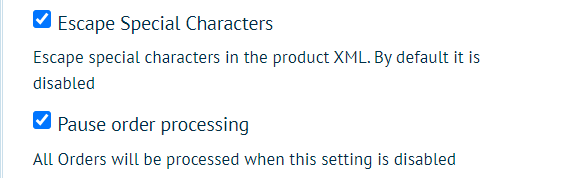
Please note: Escape Special Characters only affects XML output. It is available when Data format type is set to XML or XSLT, but if your XSLT output is delivered as JSON (File type = JSON) the setting has no effect.
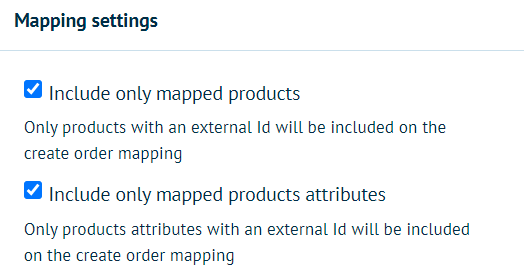
We can also send only specified products and product attributes via external IDs. This may useful if you only need certain products to be sent to your 3rd party system.
Can I download assets from an XML?
Yes, we can send asset links into the XML. This scenario would be useful if you did not want to use our hotfolders; the XML will contain a link per orderline of the assets to be downloaded. To enable this simple toggle on these asset settings under Asset Configuration:
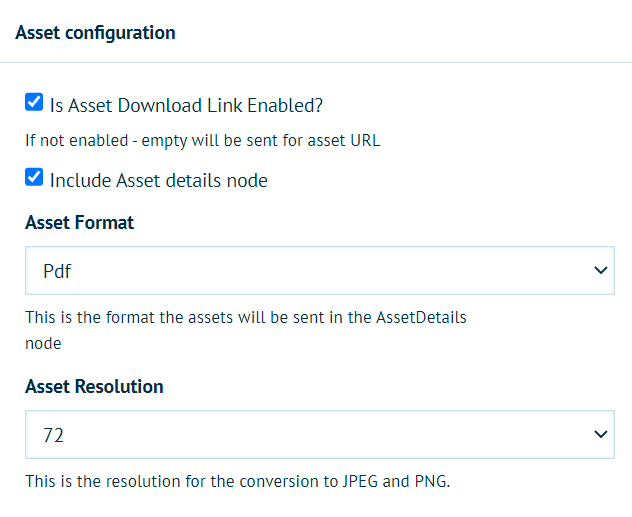
Your received XML will then have a link to the artwork that can be open and downloaded.
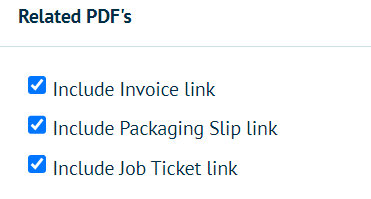
We can also send links for Job Tickets, Invoices, and Packing Slips. Just enable the files you want to receive in the XML as links:
Where can the files be placed?
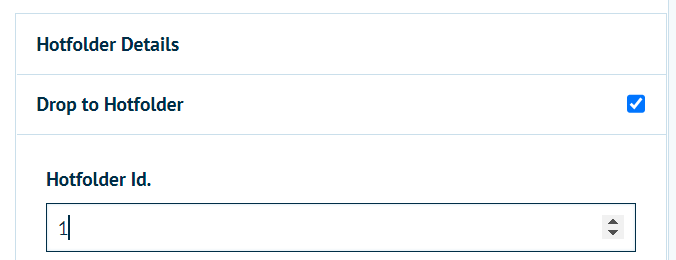
The Infigo Connect: Flow plugin supports downloading the data file into a specific hot folder, this can be configured per storefront and will then allow you to download it through Infigo Sync.
To set this up, simply enable Drop to Hotfolder, then route the XML to the folder of your choice:
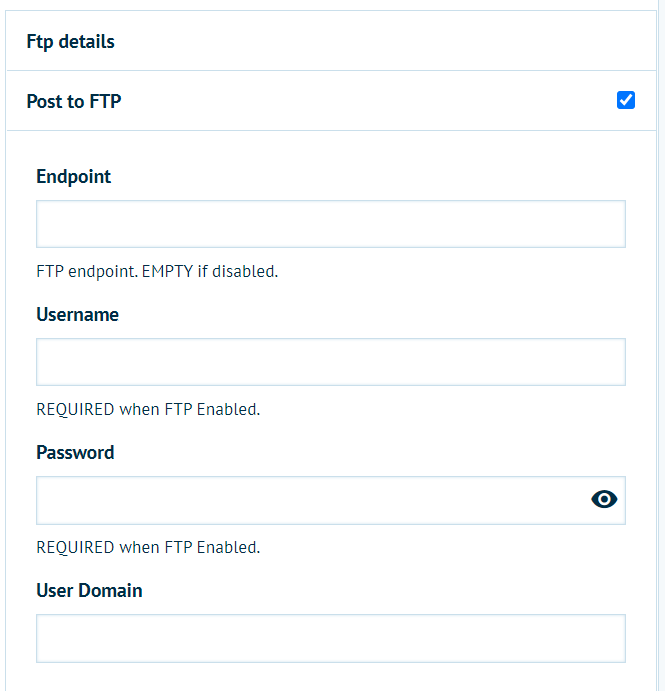
OR we support exporting the file to an FTP location. This can be done by enabling Post to FTP then inserting your FTP details:
OR we support the ability to post the file to an API endpoint, along with credentials, so that it can be sent directly to a third party system.
Can I email my JSON or XML directly to someone?
Yes - under Email Details simply check Send to Emails and insert the email address(es), you can also BCC an email if needed.
We have a predefined Email ESLT you may use called Email, or, write your own for your needs.
Want help from Infigo Software to generate the transformation files?
This is a professional service that we offer at an additional development charge.
If you want to request assistance then please provide us with the following:
* Download our example XML file, take a look at all the fields provided
* Generate an XML file in the format that you require
* Add the mapping for the fields that we provide in your structure, so that each field in your structure is mapped to a field from our structure.
* If you want it posted to an API end point then please supply us with the credentials and ensure that we have access.
What is the extra data node?
Extra data is an additional data attached to the order and/or order line. It is a key/value property which can be set using MegaScript or API mechanism.
Once the order/orderline contains the extra data, Infigo Connect: Flow will include it in json/xml request.
What is the "Exclusion list for Extra Data" setting?
The exclusion list is a list of extra data which are ignored for order/orderline request.
To exclude a specific extra data you need to write the extra data key in the textbox.
Each new extra data should be separated by a new line.
There is a possibility to exclude the extra data by a regular expression.