🚀 MegaEdit Problem Solvers 🚀

Picture of 🚀 MegaEdit Problem Solvers  🚀
Read our handy storefront styling tips and tricks!

Getting Started with MegaEdit


MegaEdit is our flagship editor for document editing as well as the creation of photo-gifting products such as Photo-books, Calendars, Corporate Gifts etc. It's intuitive user-interface and editing options allow end users to personalise documents with ease. 

Accessing MegaEdit

1. First you must Add a Product to Infigo

2. Then you can Create a MegaEdit Product

Now that you have your Dynamic Product created, you can get started!

*To learn more about the functions of MegaEdit, read Using the MegaEdit Editor for more information. 


3. Navigate to your Product within your storefront, and press Start

4. You are then directed to the MegaEdit editor (Editor shown below)


How do I use the MegaEdit Editor?

MegaEdit’s web to print feature offers an intuitive built-in editor to customize your printing needs. The editor is user-friendly, simple, and easy to use.

The following figure illustrates the various features available in the editor.

USME.png

Option Description
The Main Canvas area helps you drag and drop images and edit the front/back and other pages of your phonebook or photo gifts.

This section helps you:

This section helps you:

This section helps you:

  • mceclip7.png- Open the editor in fullscreen mode
  • mceclip8.png- Zoom in /Zoom out page view.
  • mceclip10.png- Reset the zoom to default setting.
  • mceclip11.png- Navigate between left and right pages.
  • mceclip6.png- Preview the product in a new window as photobook pages.

This section shows the list of pages that will be included in the photobook or photo gifts.

mceclip14.png - add a new page to your product

This section helps you:

Disable Positional Error Checks for Elements Extending Beyond the Canvas

When designing products, some image elements may intentionally extend beyond the visible canvas. In these cases, the system may display positional error messages that could confuse customers.

This article explains how to disable the positional error checks for individual products without affecting global settings. This is ideal for designs where out-of-bound elements are a deliberate part of the artwork.

Following this guide will help ensure users do not see unnecessary error messages while still retaining error checks for other products that require them.

Use cases

  • Products with design elements purposely extending outside the canvas.
  • Scenarios where disabling error messages on a per-product basis avoids customer confusion while retaining checks for other items.

Key settings in the product editor

  • Do not check for positional issues: Found in the Menu > Product Options under the General Field Features section.

Step-by-step guide

  1. Open the product editor for the item you wish to adjust.
  2. Navigate to Menu > Product Options.
  3. Scroll down to the General Field Features section.
  4. Tick the box labeled Do not check for positional issues.
  5. Save your changes.
  6. Perform a quick test (preferably by impersonating a registered user) to ensure the product displays as intended.

Related links

For additional guidance, please visit the Product Academy or contact Customer Support.

Fixing Missing Placeholder Values in MegaEdit Products Using Form Builder Scripts

If you're using the FormBuilderRefactor script to populate variable data in MegaEdit products and notice that some placeholder values (e.g. prices) are not displaying correctly, this guide will help you identify and resolve the issue. This commonly occurs when placeholder variables are not rendered due to layout formatting inconsistencies or missing layout assignments.

The issue may affect only specific users or layouts, and can be caused by a combination of script logic, font styling within placeholders, or incorrect layout configuration. This article outlines how to troubleshoot and fix these problems.

Use cases

  • Placeholder values not displaying for specific users in MegaEdit products
  • Text fields showing only partial or incorrect variable output
  • Layout changes not saving or reflecting for end users
  • Issues with default layouts not matching assigned layouts in Form Builder CSV
  • Inconsistent font styles within placeholder text causing variable mismatch

Key settings in Infigo

  • Form Builder Script ConfigurationAdmin > Dynamic Products > Edit Script Configuration
  • Global Additional DataAdmin > Additional Upload Data > GlobalData
  • Layout Assignment CSVGlobalData > Flyers folder > e.g. HWB_FlyerA6_TeamEvent.csv
  • Layout EditorAdmin > Product > Edit > MegaEdit > Layouts
  • Resave Var FieldsEditor > Tools > Resave var fields (we updated variable values)

Step-by-step guide

  1. Open the MegaEdit product in the admin editor.
  2. Apply the layout you want to edit using the layout dropdown.
  3. Click into the text field containing the placeholder (e.g. [++KidsCelebrationPrice-OffPeak++]).
  4. Check for inconsistent font styles:
    • Highlight each character in the placeholder individually.
    • Ensure the entire placeholder uses the same font family and style.
  5. If styles differ, either:
    • Delete and retype the affected character(s), or
    • Select the entire placeholder, change to a different font, then switch back to the correct font.
  6. Click outside the text field to exit edit mode.
  7. Click Resave var fields (we updated variable values) in the editor toolbar.
  8. Save the layout using the Update Layout button.
  9. Ensure the user is assigned to the correct layout in the relevant CSV file (e.g. HWB_FlyerA6_TeamEvent.csv).
  10. If a user is not assigned a layout, the system will use the product’s default layout. Make sure the default layout is correctly configured.

Related links

For additional guidance, head over to the Infigo Academy or contact our Customer Support team.

Managing Departmental Budgets with the Budget MegaScript

The Budget MegaScript is designed to automatically top up each user within a department with a set budget amount. This means that if you assign a budget of $500 to a department, every user in that department will individually receive a $500 budget.

This feature ensures that budgets are allocated on a per-user basis, rather than as a pooled total across the department. There is no aggregation of users' purchases toward a single department-wide budget.

If you need to assign individual budgets during user uploads, you can update user budgets in bulk without having to edit them one at a time. For more information, review the user upload documentation available in the academy.

Use cases

  • Automatically assigning a fixed budget amount to every user in a department.
  • Managing departmental budgets when budgets need to be tracked individually.
  • Utilizing bulk uploads to update individual user budgets efficiently.

Key settings in the Admin Interface

  • MegaScript Instances: Navigate to the Admin panel and select the MegaScript Instances section.
  • Budget Option: From the dropdown menu within the MegaScript Instances, select the Budget option to create a new budget script.
  • Access Control: Ensure that your account has the necessary ACL permissions, such as managing and using MegaScripts.

Step-by-step guide

  1. Log in to the Admin Interface.
  2. Navigate to the MegaScript Instances page.
  3. Select the 'Budget' option from the dropdown menu.
  4. Click 'Create' to enable the Budget MegaScript.
  5. Assign a budget amount; this amount will be automatically topped up for each user in the selected department.
  6. If needed, use bulk user uploads to set individual user budgets without manual editing.

Related links

For additional guidance, head over to the Product Academy or contact our Customer Support team.

Setting Up a Single Input for Multi-Page Signatures

This article explains how to configure a product so that a customer can enter their name once and have it automatically appear as a signature on multiple pages. The solution applies when using the Invent platform.

By using a variable placeholder, you can bind the same input field to text boxes on different pages. When the customer updates the field, the change propagates throughout the product.

Note that this setup is only supported when using Invent. If you are using MegaEdit FormBuilder, each page requires its own separate input configuration.

Use cases

  • Multi-page memo products for teachers where a single signature is displayed on every memo page.
  • Products designed with Invent that benefit from automatic variable updates across pages.

Key settings in Invent

  • Variable Creation: Create a variable in the Invent interface.
  • Text Box Properties: In each page’s text box, set the Type to Variable and select the created variable.
  • MEX File Export: Export the configuration as an MEX file and upload it to the ME product.

Step-by-step guide

  1. Create a variable in Invent that will store the customer’s name.
  2. Add text boxes to each page where the signature should appear. Note that you do not need to pre-fill these boxes.
  3. For each text box, open its properties and set the Type to Variable. Then, choose the variable you created earlier.
  4. Export the MEX file from Invent and upload it into your ME product setup.
  5. Test the configuration by entering a name into the variable field to ensure it automatically updates on every page.

Related links

For additional guidance, head over to the Infigo Academy or contact our Customer Support team.

Text Alignment Options in ME Products

This article explains the available text alignment choices within the ME products. Currently, the system supports only three options: left, center, and right alignment.

When creating products through both the Invent and Form Builder interfaces, users may notice that the 'justify' text alignment option is not available. This limitation is by design and applies to all products.

If your workflow requires full text justification or you expected an additional alignment option, please note that enhancement requests are evaluated periodically. For now, the system supports only the three aforementioned alignment choices.

Use cases

  • Editing text in products where different alignment options are required.
  • Evaluating product templates in both Invent and Form Builder environments.

Key settings in Infigo

  • Text Alignment Options: Located within the product editing section in both ME Invent and ME Form Builder interfaces.
  • Graphic Editor Settings: Accessible from the main product configuration area where text customization is enabled.

Step-by-step guide

  1. Log in to your account and navigate to the product editing page for either Invent or Form Builder.
  2. Open the graphic or text editing section where alignment options are displayed.
  3. Observe that the available options include left, center, and right alignment only.
  4. Confirm that the 'justify' alignment option is not present, as this feature is not yet supported.
  5. If you need further clarification or wish to request new functionality, contact Customer Support for assistance.

Related links

For additional guidance, head over to the Infigo Academy or contact our Customer Support team.

Uploaded File Auto Resizing on Dynamic Canvas

When using the MegaEdit product with a dynamic canvas, uploaded images or PDFs are automatically resized to fit the full canvas area. This behavior is part of the current default settings.

For example, when a file with dimensions smaller than the canvas (such as a 106 x 238 mm PDF) is uploaded to a canvas set at 1500 x 2500 mm, it is scaled up to fill the entire canvas. This can make it difficult to verify if the file was produced at the correct dimensions.

Currently, there is no customizable setting available to display the file at its original size. All files, regardless of their original dimensions, are scaled to the canvas size upon preview.

Use cases

  • Verifying artwork dimensions after upload.
  • Comparing small design elements against the canvas size.
  • Ensuring files are correctly formatted for output.

Key settings in the Product

  • Dynamic Canvas: Located under the product setup screen where canvas dimensions are defined (e.g., setting the canvas to 1500 x 2500 mm).
  • Measurement Units: Configured on the product landing page to display units in millimeters.

Step-by-step guide

  1. Access the product setup page and configure the dynamic canvas dimensions (e.g., 1500 x 2500 mm) with the desired measurement units.
  2. Upload your file (such as a PDF with smaller dimensions) either via drag-and-drop or by selecting from your desktop.
  3. After the file is uploaded, click the preview button to view how the file is displayed on the dynamic canvas.
  4. Observe that the file is automatically resized to cover the full canvas area, regardless of its original dimensions.
  5. If you require the file to be displayed at its actual size for verification, please note that this behavior cannot be changed with the current settings.

Related links

For additional guidance, head over to the Infigo Academy or contact our Customer Support team.

How to Add a Layout when Adding a New Page


This article is going to explain how to setup your MegaEdit product so that when a user adds a new page, the layout on the previous page is retained. This can be very useful if your customer wants to add more pages and the layouts are static. 

There are two prerequisites for this to work, you will need to create a layout category, and then create a layout. 


MegaEdit Steps

1. First, you will need some layouts applied to your canvas, or simply created. Below you will see I have a basic four image layout on my canvas. 

2. After you have your layout created, you will need to navigate to Show Menu at the top. 

3. Now hit Edit Page Data


4. Now, you will need the name of the Category your layout is in as well as the name of the Layout. 

In this example, my layout category is named "Default Layouts" and my layout is named "4 image layout". 


5. With this information, you will fill this in under the New Page Defaults section, in Layout


6. Input layout category name first, followed by a pipe "|" character, then the name of the layout. Here is an example of how this would look:

Default Layouts|4 image layout


*Be sure to not have any space between the pipe character, and that the names are exact (this is case and space sensitive). 


7. Hit Save. Then Save as product default. Refresh your page. 

8. Now, when you add a new page, the layout will automatically populate!

How to Use Barcodes in MegaEdit

MegaEdit is compatiable with the use of barcodes whether there is a static data value you wish to add to it in the editor or whether you need to inject some data into a barcode on output creation (PDF creation) like for instance a shipping address of the user to be used with a barcode scanning device etc.

Firstly you will need to assign the the Barcode script against your dynamic product under the scripts tab against the product. (Speak to the Helpdesk if the script is not avaliable to select from the lists of scripts)

Screenshot_2018-07-02_10.52.20.png

Once the script is enabled and assigned against the product you will see an "Add Barcode" button in the editor.

Screenshot_2018-07-02_10.53.13.png

Clicking this button will create a Barcode field on the canvas area. A shown below:

Screenshot_2018-07-02_11.06.52.png

This is the default start point of your barcode field.  There are 2 tabs on the Barcode field pop up options, Configuration and Details.  Details will list the same options as you see on the text/image field deatils so X/Y coordinates, Height/Width, tags allow/deny restrictions etc.

Configuration tab as displayed above shows a number of configurable settings, we shall briefly explain each one detailed below:

Type = What type of barcode you which to create, example STD-25/INT-25/QR Code/Data Matrix (see dropdown in editor for full list)

Value = The data you add here will be what is created via the barcode.

Encoding Mode = Only displays when Data Matrix is selected - options are BASE256/ASCII/C40/TEXT/X12

Auto Scale = Scales the barcode to fit the barcode field

Show Human Readable = This simply displays the value input below the barcode (as shown in above image with 123456789)

Margin Human Readable = This is a pixel value that adds space/padding between the base of the barcode and the Human readable value displayed below it.

Font Size = This will dictate the size of the text being displayed for the Human readable value.

Barcode colour = click the icon colour picker to enable the Megaedit colour pop up deatails where you can now assign a diffierent colour for the barcode to be displayed in.

If you wish to inject any other data from within catfish into a barcode on output creation or editor etc then this is possible but there would need to be a "MegaScript" written and applied to your storefront which is a chargeable development request, please contact the helpdesk for an explanation of your workflow requirements so a quote can be formally drafted for your approval.

How to Configure Margin Value in MegaEdit

The margin value, located under the details tab in the pop up text options for text fields allows you to add a pixel padding amount around all sides of your text field.  This is used to allow text from certain fonts to bleed outside of the text field.  See image below to illustrate.

Screenshot_2018-07-05_09.37.21.png

How to Configure Zoom Padding

MegaEdit provides the ability to control the pixel padding around your product's canvas when the Reset Zoom button is hit. This allows you to predefine the zoom of your default product view.

Find this feature in the Product Options of your MegaEdit product. This can also be set within the product defaults for all new MegaEdit products, using the MegaEdit Product Settings menu within Infigo admin.

Locate the Zoom Padding input. Entering a new value and clicking Save will immediately update the product view to display the new padding. It will appear as a number of pixels between the edge of the canvas and the MegaEdit work area and will be controlled by the canvas edge closest to the edge of the work area.

Once moved or zoomed in, hitting the Reset Zoom icon will restore to this view.

How to Configure MegaEdit Upload UI

Infigo supports the ability to upload print-ready artwork through our MegaEdit upload UI, allowing your users to create outputs which have a canvas that perfectly fits their artwork.

1. You will first need to set up a ME product. Please see this article explaining how to do so. 

2. Once you have created your ME product, you can either create a specific canvas size you will need to create a dynamic canvas. Please see this article explaining what a dynamic canvas is and how to configure one - make sure to assign your dynamic canvas to this product.

3. Now that you have set your product up, you will need to open that Product in Product Management and click Edit.

4. Click on MegaEdit Config and scroll down to the Upload UI section. Tick (enable) 'Use Upload UI' as seen in the screenshot below. 

If you do not see this setting please raise a support ticket and ask for this to be enabled for you.

Our UI has native support for uploading PDFs, PNGs, JPGs and TIFF's.

Convert Image to PDF on Upload, this setting is ONLY required when you are using our Enfocus preflight module - where you run a .PPP file against a product. Please contact your sales rep for details on the cost of this module.

If you cannot see this setting, please contact support and we will enable this feature for you.


Next Steps

5. Now that you have enabled this setting when you click Start on the product's landing page: 

...you will no longer be loaded into the editor, and you will instead see the following page:

As you can see, you are shown the minimum page dimensions, the page limit, the number of pages they have already uploaded, as well as how many pages they need to upload to meet the minimum page requirements (this can be set in the dynamic product's properties).

Please note that to support uploading multi-page PDFs, you must enable the setting MediaSupportMultiplePages which you will find in Admin under Media Album Settings.

6. You can either click on the upload field and use the file browser or you can drag and drop the file. Both of these actions will upload the artwork and generate a preview, as seen in the screenshot below.

You can see that the price will automatically calculate and be displayed (if you have configured this for the stock you have assigned to this product). You will also be able to see the name of the uploaded PDF, as well as the dimensions of the PDF which directly correlate to the size the dynamic canvas has adjusted to.

Please note: If the artwork does not fit within the minimum and maximum ranges, the canvas will shrink/grow to accommodate the artwork as well as it can, and any overlap in the artwork will be handled by either cropping any overlap for the artwork or filling the blank space with the stock colour/pattern.

At this stage, you have the following possible actions:

  1. Upload one or more PDF(s) until you reach the maximum number of pages for this product.
  2. Save the project for later (if this setting is enabled).
  3. Click Edit in full editor - this will launch the product in the MegaEdit editor and will allow the user to make changes on top of their uploaded artwork. This feature can be enabled or disabled through the setting Allow full editor in Upload UI in the dynamic product's Product Properties.
  4. Click Show Preview to generate a MegaEdit preview on this page, allowing them to see what their output artwork will look like.
  5. Add the product to the basket.

How to Configure a Watermark

There is an option in MegaEdit to enable a watermarked preview from within the editor that a user can download and send to another user/manager etc before sending through to print. 

This setting can ONLY be enabled by an admin user - to activate go into the editor and click on Menu button :

Watermarked_Preview_Screenshot_1.PNG


Click Product Options:

Watermarked_Preview_Screenshot_2.png


Scroll down to find Additional Download Support:

Watermarked_Preview_Screenshot_3.PNG

There are a number of settings that can be altered:

PDF Download: = This enables the PDF Preview

Watermark Text: = This is the watermark text that will populate your preview

Restrict printing: = This setting enables whether the pdf preview can be print locked or not

Max page count: = This setting allows you to create a multipage PDF preview -1 = ALL pages 1/2/3 restricts the number of pages that will be previewed.

The below button will appear in the top right of the editor when the settings above are configured.

Watermarked_Preview_Screenshot_4.PNG

How to Configure Shipping by Weight in MegaEdit


When setting up shipping by weight in Infigo it is important to account for added weight that can possibly get added additionally to MegaEdit products.  Normally this value plays no part in the total weight value when using fixed weight shipping but kicks in when shipping by weight is made active. This weight is added via the output type that the MegaEdit product is using. The default value in the output type when created is '1' and this will add 1 kg/lbs (depending on default weight measurements for your storefronts) to your MegaEdit product plus any weights added at product variant level via the product directly or product group level. This can be adjusted easily and below we will show you how.

Navigate to Output types under in Catalogue > Product Types > MegaEdit > MegaEdit Output types

Screenshot_2018-07-16_12.06.18.png

Navigate to the Output type that needs amending and Edit and scroll to the bottom of the output type.

Screenshot_2018-07-16_09.18.33.png

Under "Weight" you can simply adjust this figure as required.  0 will remove the extra weight.

In general this weight setting gets used when there is a dynamic element involved.  For example you have a photobook and you can have 2 output types assigned to a product 1 softcover and 1 hardcover configuration that the user can optionally choose.  A hardcover will weigh more than the softcover/self cover so this is where the weight factor comes in to play.  If your products do require this extra weight to be specified then please remove the value for accurate shipping weights.

How to Configure Autofill in MegaEdit

MegaEdit has a number of default scripts available (MegaEdit PRO version ONLY) - here we go over the setup for using and applying the Free Autofill script. 

NOTE: If you require scripting to be enabled, please contact the support desk. 

Navigation

To navigate to the MegaEdit scripts, go to Catfish > Infigo Variable Data > Dynamic Products. Then click the 'Products Tab' in the upper right-hand corner, this will show all of your Dynamic Products. Press 'Edit' on the product you want to work with. Navigate to the 'Scripts' tab on the upper right-hand corner. 

Requirements

First, enable the Free Autofill script by checking the box within the product's script tab. Then press 'Save Changes'.

FreeAutofill01.PNG

This script sets the autofill functionality for the assigned product. There are 2 script versions for the autofill - Free Autofill and Layout Based Autofill

Free Autofill allows the images to auto update empty image fields across pages of the product.

How to Configure MegaEdit Hyperlinks


MegaEdit menu hyperlinks can tailor the content of the menu and the links by navigating to the Admin area > Content Management > Editable Content > MegaEdit Show Menu (see below)

Once you click the 'Edit' button next to this entry (on the right side of the page) you will be taken to an editor page (see below). This page can also be used to add menu items, add the new entry into the Body field, use the highlighted button to attach a hyperlink to it and click 'Save' 


To change the link address simply highlight a bullet-pointed item and click the button the button shown in the red square above. A dialog box will appear (shown below) where you can edit the link and settings. Using the / prefix performs the request in the web resources folder for the current site

How do I calculate my MegaEdit Spine Width? [Calculator]

Pages Number of sheets Infigo Spine (pages only) Infigo Total End spine width
10 5 0.508 2.032 6.5
20 10 1.016 2.54 6.5
30 15 1.524 3.048 6.5
40 20 2.032 3.556 6.5
50 25 2.54 4.064 6.5
60 30 3.048 4.572 6.5
70 35 3.556 5.08 6.5
80 40 4.064 5.588 6.5
90 45 4.572 6.096 6.5
100 50 5.08 6.604 6.604
110 55 5.588 7.112 7.112
120 60 6.096 7.62 101.6
130 65 6.604 8.128 8.128
140 70 7.112 8.636 8.636
         
MegaEdit settings - Constants    
Minimum spine width 6.5    
Additional spine 1.524    
Page Micron thickness 101.6    

How do I Configure Prepopulate Data?

MegaEdit has a number of default scripts available to use.  Here we look at the Prepopulate Data Script and how to apply it to a product.  The script allows you to set a template to autofill with a users Catfish data based on their login info. Examples: Username, email, phone, custom fields 1, 2 and 3. etc

1. To enable this, navigate to Catalogue > Product Types > MegaEdit > MegaEdit Products > Edit > Scripts tab of an existing product and add the script as below.

mceclip0.png

The prepopulate data script is used to populate a dynamic product with some information from the end users' Infigo signup data.

When you have enabled the script there will be a button in the editor marked 'prepopulate data' - this will be greyed out to start with with until you select a text field.

When you have selected a target text field - click the button and you will see a pop up of selections. Please note you can ONLY have 1 selection per field - these do not act as placeholders.

Screenshot_2020-12-02_at_16.58.58.png

The list of prepopulate data fields are:

Job Id

Product Id

Customer Title

Customer Full Name

Customer First Name

Customer Last Name

Customer Email

Customer Address Line 1

Customer Address Line 2

Customer Street Address

Customer Street Address 2

Customer Date of birth

Customer Gender

Street

City

Company Name

County

Country

Fax Number

Mobile Number

Postal Code

Language

Phone number


Selecting any of the above will assign that 'tag' to the field which would look like below:

Screenshot_2020-12-02_at_17.04.10.png


We also support the custom fields from registration (if enabled), Custom field 1, 2 and 3. (How to enable custom registration fields) To use these fields in your template you need to add a "tag" to a text field and use this tag: prepopulate_Custom1

This also includes the use of an Avatar image if assigned to a user account.  You can use this tag: prepopulate_avatar.

Once you have completed your setup of fields, save the product default for that product under Menu > Save product default.


To view the data being pulled in successfully you will need to launch a new window and login in as a registered user - you cannot view the data as a storefront admin user even if you emulate user mode.

Example using Job Id:

Screenshot_2018-01-03_15.29.22.png


How do I Customise the MegaEdit Editor Background?

Through the use of the CSS Override feature, you can change the background of your MegaEdit editor. This article will explain how to achieve this and the steps to take. 


Upload your Image

1. Navigate to Content Management > CSS Overide. 

2. Select the Choose a File button 

3. Press Upload

4. Save the end of the URL for later use. If your image URL is:

/123456789/Handler/CSSOverride/GetImage/12/background.jpg

Then you will want to save:

/background.jpg


Change the Canvas Configuartion

1. Navigate to Configuration > Settings > Product and Editor Settings > MegaEdit product settings.

2. Press the Default Product Configuration tab.

3. Under Canvas, change these two settings exactly as they appear in the image below:

5. Press Save.


Upload CSS Code

1. Copy the below code, be sure to change the image reference according to your site (Bolded), use the reference from above. 

.DynamicProductWrapper .canvas-container {
background-image: url('{images}/background.jpg');
background-size: cover;
background-position: center;
}

2. Navigate to Content Management > CSS Override. Add this code to the bottom of your CSS file, then press upload. 

3. Be sure to Clear cache in order for the changes to take place.

4. You now have a custom MegaEdit background!

Please note this is a global change and will affect all of your MegaEdit products. 

How can I edit the MegaEdit Instructions/Information Panel?

You can create a popup message that appears when a user first opens the ME editor. This popup will give the user any relevant information/instructions they may need when using the editor.


Using editable content blocks and assigning one to the MegaEdit product you want to display the message on. 

Navigate to Editable Content in Admin and search for Infigo Editor Instruction Panel (Admin > Content Management > Editable Content > Infigo Editor Instruction Panel.)

In there, you can edit what you want the pop-up message to say.

and then assign it to a product using the instructions tab in the MegaEdit Config.

(Or you could create your own content block. Navigate to Editable Content in Admin and under the custom tab section add a new content block. You could call it "MegaEdit instruction panel 1" for example. You can adjust the content as you require.  Then simply assign that to any product under the MegaEdit product section for instructions. (See Creating Custom Content Templates for more information on this))
 

Static Message (That customer can't close)
Alternatively, you could also set up a non-clickable text box within the editor that is placed off the canvas. Something like this:

You would need to add a new text field, adjust the field settings to make it unable to be selected by the customer, and save it as product default.

How can I Rename the Page Numbers in MegaEdit?

In MegaEdit, it is possible to change the number displayed between each page to any given text. This can be useful in cases such as changing the "1" below the first page to "Front Page", the second page to "Contents Page" etc.

This can be done by editing the "Page Name" value for the page under "Edit Page Data".

To start, create a MegaEdit product, edit it whilst signed in as a storefront administrator, and click "Show Menu" at the top.

Show_menu.png

From the dropdown which appears, click "Edit Page Data"

Edit_page_data.png

In the menu which appears, there will be a numbered list of all the pages currently contained within the product. The "Page Name" field will be blank by default, which will cause the number to be displayed instead of a custom name. You can change these fields simply by typing any text you want in the "Page Name" field and clicking "Save".

As you can see in the screenshots below, I have filled out the "Page Name" field for the first page, but left it blank for the second page. I have colour-coded the screenshots to better highlight which field correlates to which page name.

Page_Edits.png

Page_list.png

How to Create a Text Curve in MegaEdit

On the product click edit > MegaEdit > scripts, there is a text on curve field option > tick it (if it is not in the list raise a ticket with helpdesk to enable this for you chosen storefront or platform)


On the product itself navigate to fields > add text on curve

 
There is a curve option


In this field you will need to add the values you can get from a new webpage by adding "/toch.html" to the end of your URL.  Example mycompanyname.infigosoftware.com/toch.html

please note that the "Show render mode" setting is not supported on custom fields which this script uses.  So there is limited font styling available

Screenshot

How to Allow Add to Basket Button in MegaEdit Previews

Hide Add To Basket button

You can hide the add to basket button via a small script snippet and Setting.

It can be set per product or globally.

Via settings

Global - MegaEdit Product Settings → Default Product Configuration → Allow Add to basket [true/false]

Per Product - Open MegaEdit product editor and Menu → Product Options → Allow Add to basket [true/false]

Via scripting

Open MegaEdit product editor and Menu → Product Options → Show Scripts


Editor.UI.ShowEditorUi('addtobasket', true); // true for visible and false for hidden


Setup Add To Basket in Preview (Standard and 3D)


Open MegaEdit Product → Product Properties and add this config under Preview Config

{

showAddToBasketButton: true

}

How to Hide the Add Barcode Tool Option in MegaEdit

MegaEdit supports a script that enables admins and end users to apply a barcode field to the canvas and be customised with a value that will be represented via a number of different barcode types.

Where there is a scenario where an admin wishes for a barcode field to be applied BUT no further barcode fields added via the end user, there are some settings that are required to hide it in various formats.

Default setup

When enabling the Barcode field it will display in the Fields tab on the left pane.

Screenshot 2023-12-18 at 23.55.14.png


In this scenario an end user is still able to add further barcode fields to the canvas.  This is not always required. 

You can hide the fields tab entirely - this wil prevent the end user from adding new barcode fields as it will move the add text and add image buttons to the top menu area next to the menu button.

Screenshot 2023-12-19 at 00.10.36.png

Screenshot 2023-12-19 at 00.11.11.png


However if you ONLY want to the Barcode option to be hidden and still retain the fields tab then this can be achieved using a config set on the barcode script. 

Go to the product under the MegaEdit Product section and edit the product and click on configure for the barcode script.

Screenshot 2023-12-18 at 23.53.50.png


Here you can add in a snippet for { ShowButton: false } to hide the button from show.

Screenshot 2023-12-19 at 00.19.20.png


This now means the end user can still add further fields but use ONLY the supplied Barcode field that has been set and configured by the admin. 


How to Change Between Imperial and Metric Dimensions in MegaEdit

Depending on your client or business structure, you may need to change dimensions in Megaedit from Imperial to Metric or vice versa.

There is a simple solution for this, you will need to navigate to Admin --> Configuration --> Measures --> Measure Dimensions

From this page, there are a list of different dimension types, to change to the dimension, click the 'Select' button under 'Mark as primary dimension' to change the dimension to your requirement.

How to Edit Layout Names and Delete Layouts

Once a layout name is created in MegaEdit it cannot be changed within MegaEdit unless you create a new layout.  This may result in multiple or extra layouts that you do not want.  The solution allows you to edit layout names and delete layouts.  Renaming a layout in infigo translates to an updated layout name in MegaEdit.  Deleting a layout in Infigo removes it from MegaEdit. 

  1. Navigate to Catalogue > Product Types > Megaedit Products > MegaEdit Canvas

2. Select Edit on the canvas that your product is using.

mceclip3.png


3. Navigate to the Layout Categories tab

mceclip1.png

4. Select Configure on the Layout Category that corresponds to the layout you wish to edit or delete.


Editing a Layout Name

5. Under Upload Files: find the .json file for the layout you want to edit and select the gear icon.

mceclip4.png

6. This will open a dialog box where you can now rename your layout. Select Ok when finished.

7. On a separate tab, navigate to or refresh your megaedit product and you will notice that your layout name has been updated.


Delete a Layout

8. Under Upload Files: find the .json file for the layout you want to delete and select the X.

mceclip5.png

9. Confirm you wish to delete the layout.

10. On a separate tab, navigate to or refresh your Megaedit product and you will notice that your layout name has been updated.


How to Rotate Output Files During Output Creation

Have a requirement for the output file to be a specific orientation but do not want to compromise the user experience in the editor by having it rotated in the editor? Then we have a MegaScript that you can use that will allow you to rotate your output files during the output creation process.

If you can't find MegaScripts in your Infigo Admin menu under Configuration, please raise a support ticket.


Background

Before you start please note:

You can create a custom MegaScript in MegaScript Management, which you can apply in MegaScript Instances, or you can choose from our the dropdown list within Instances:

mceclip0.png


How To

Go to Configuration > MegaScripts > MegaScripts Instances

Create a MegaScript Instance and set the configuration for the degrees of rotation you would like to be applied to the output file.

Simply select from the dropdown list the 'Page Rotation' script you just enabled and click 'Create'.

Then give your instance a name of '90 degree output rotation' (depending on how much you want to rotate your output by and ensure the 'Enabled' setting is enabled.

Also ensure the 'Output Creation' setting is enabled too.

Now you need to create a configuration entry for the script depending on how you want your output to be rotated.

Below is the full config but this will need amending depending on how you want your output to be rotated.

{
pageConfig: "all", //"odd","even","1","3-5"
rotation: {
angle: 90 //0, 90, 180, 270
},
attributeName: 'name',
attributeValue: 'value'
}


For example:

{
pageConfig: "all",
rotation: {
angle: 90,
},
attributeName: 'Orientation',
attributeValue: 'Portrait'
}

The example above shows a rotation of 90 degrees on all pages when the attribute Orientation is set to Portrait.

Click Save.

Assign rotation script to a product

Supported product types include: MegaEdit, Infigo Product, Multipart

MegaEdit: Catalogue > Product Types > MegaEdit >MegaEdit Product > Edit > Output MegaScript

Infigo Product: Catalogue > Product Types > Infigo Editor > Infigo Products > Edit > Output MegaScript

Multipart: Catalogue > Product Types > Multi Part Products > Edit > Output MegaScripts

Navigate to your product and when editing it you will see an 'Output MegaScript' drop down. Select your Rotation script from it and save the product.

How to Enable Bullet Point Support

We have created a new MegaEdit script that supports bullet points.

The setup and configuration of this is by an admin only at this point and the way it works is by first enabling the ‘Bullet Point List’ against the product by selecting a dynamic product and then navigating to the ‘Scripts’ tab and checking the ‘Bullet Point List’ script. There is also some configuration that needs adding:

 {

  mode: "image",
  
image: {
    clipartAlbum: "Food",
    clipartName: "Burger"
  },
  
position: {
    x: -25,
    y: 5,
    width: 20,
    height: 20
  },
  
text: {
    font: null,
    fontSize: null,
    color: "#ff0000",
    character: "*"
  }
}


The ‘mode’ item allows you to determine whether a clipart image or specific font and character is used as the bullet point (either ‘image’ or ‘text’). Selecting ‘image’ will mean it inserts the clipart image declared in the image item – declaring both the clipartAlbum and the clipartName of the image you want to use. Selecting ‘text’ will mean it uses the configuration declared in the ‘text’ item – font (family), fontSize, color and the character. Position is where it gets positioned in relation to the text you have in the text field allowing you to give it an offset to the left/right.
Once enabled, open the product in MegaEdit and create a text field. Then set the tag ‘bulletpointlist’ on that field. The way it works is that any time it detects a line break it will insert the configured bullet point symbol.

How to Hide Left Menu When Viewing as an Admin

When viewing a MegaEdit template as an admin you have full admin rights and therefore have full access to the product and all the tabs and areas assigned to the product.  There is an option in the menu for "Emulate User mode" - This will allow you to experience the field behaviours ONLY on the canvas and how an end user would interact with them.  It will NOT hide any tabs on the left pane when clicked.  Lets run through some scenarios below to clarify this.

I have a MegaEdit product that has a single text frame and I have applied some settings to it.

Screenshot 2023-12-19 at 23.02.09.png

Hide border options and Hide shadow options are two tabs that appear within the pop up window when the end user double clicks the field.  If we want to check that this is working as expected, as an admin we will always see those tabs in place.  So we need to click the "Emulate user mode" option in the Menu dropdown to view as an end user.

Screenshot 2023-12-19 at 23.05.33.png

After selecting this and clicking the field again you will see a change to the tabs available for that field we made changes for. The Border tab and Shadows tab are now hidden from view within the pop up window as an end user would view the template.

Screenshot 2023-12-19 at 23.06.11.png

All tabs still appear in view on the left as an admin has full access rights.

If you wish to view the whole editor experience as an end user then you would need to view the editor by clicking impersonate user from within admin > customer management.  That would give you the full experience of the whole editor including any left pane tabs that would appear or show based on settings.


How to Display MegaEdit Attributes (Canvas, Stock, Output Type) On Product Landing Page as Product Attributes

In Infigo, it is possible to have certain attributes of your MegaEdit product be controlled or chosen on the product landing page. This includes attributes such as the chosen canvas, the canvas size (if using a dynamic canvas), the stock, and other attributes which will be covered in this article.

To enable these attributes, you need to navigate to:

 Configuration > Settings > Product and Editor settings > MegaEdit Product Settings

Select the Product Attributes tab:

Screenshot 2024-04-28 at 00.38.23.png

To enable this feature, you will need to check Show Canvas Options on Product Landing Page and click Save.

Once this has been enabled, the attributes will start to appear on the landing pages of all relevant dynamic products. An example of relevance in this context would be if a product has two or more canvases applied to it, then there is an option to make so the Canvas attribute will appear on that product's landing page. However, if that product only had one stock option applied to it, then this attribute will not appear on the product's landing page.

Enabling this setting will also allow you to display these attributes on the checkout page. If an attribute is given an attribute name in the text box beside it, then it will appear on the checkout page with this name whilst this setting is enabled.

If no name is provided in this menu, the system will use the default one instead, with the default name being the text in the first column with the prefix CATFISH_ME_. For example, if you do not provide a name for Canvas then the default attribute name will be CATFISH_ME_CANVAS.

*All named Dynamic Attributes have Product Attributes created for them whenever a user places a MegaEdit product in the basket, and these attributes will be added to the product placed. 

Note: Be careful when renaming these attributes as the system will not recognize that these have been renamed and will create a new attribute.

Below is a list of all the dynamic attributes and some corresponding information about each one:

Canvas:

This attribute is used to control and display the MegaEdit canvas used for the product, if multiple canvases are applied. On the landing page, this will either appear as a dropdown list, or a series of radio buttons. This can be controlled through the dropdown beside the attribute which has the following values:

  • DropdownList - This will cause the attribute to be controlled by a dropdown menu
  • RadioList - This will cause the attribute to be controlled by a list of radio buttons
  • SmartSelection - This will display as either a dropdown list or a series of radio buttons, depending on the number of available choices. When you select this setting, a new field will appear to the right of it - the number in this field is what will be checked to see whether the attribute should display as a dropdown or a radio menu.

In the basket, this will display the name of the selected canvas.

Canvas Size:

This attribute will display the name of the chosen canvas size anywhere this attribute is referenced post-editor. This attribute will not hold any value on the product's landing page as this value is not decided until the editor (even if there is only one canvas size assigned to the canvas, this attribute will have no value in the editor).

Note: If you are intending to use Dynamic Canvas Sizes (allowing your users to control the size of the canvas from the landing page) then you can only assign one Canvas to the product. See this article for more details.

Output Type:

This attribute will allow the user to select the output type if multiple types are assigned to the product. This will be controlled in the same way as the Canvas, in that it can be controlled through either a dropdown list or a radio menu - with the option of SmartSelection to make it customized to each product.

Note: For the product to work, you will need to ensure that either all of the assigned output types have covers enabled, or none of them.

Stock:

This is one of the attributes which can be configured on the landing page, and so it can be controlled via a dropdown menu or a radio menu. As with the Canvas attribute, this option will only appear on the landing page if the product has two or more stock options assigned to it.

Page Count:

This attribute does not have any value on the landing page, rather it is used to display the number of pages in the basket, the checkout, and anywhere its value is called post-order placement i.e. on the job ticket. 

Note: This value will not include the covers when calculating the number of pages

Spine Width:

Similarly to the "Page Count" attribute, this attribute is only used to display its calculated value once the job has been created through the editor. The Spine Width is automatically calculated by multiplying the micron thickness (set in the product's stock) by the number of pages. However, if "Duplex Printing" is enabled in the product's output type, this number will be halved.

Weight:

This will display the weight of the job once it has been created through the editor - again, this does not hold any value on the landing page. This will be automatically calculated by multiplying the number of pages by the weight of the stock and is measured in g/m^2 (grams per meter squared).

Width and Height:

Width and Height are grouped together as both of these only appear when a Dynamic Canvas is being used. These will produce sliders and an entry box for each value to allow the user to control the size of the canvas on the landing page, and can do so in the following units:

  • Millimeters
  • Centimeters
  • Meters
  • Points
  • Inches
  • Feet

Number of Records:

This attribute only applies to MegaEdit products which are utilizing the Batch Upload feature - allowing the users to upload a CSV to the editor in order to place a batch order. This attribute will display nothing on the landing page, but at every point of reference after the job has been added to the basket, it will display the total number of records contained within the uploaded CSV.

Below are two screenshots of a product's landing page which has:

  • 2 stocks assigned, with a radio menu to control which one is used.
  • 2 output types assigned, with a dropdown menu to control which one is used.
  • A canvas assigned which utilizes the Dynamic Canvas feature to control the size of the canvas on the landing page

These will show off the Stock, Output Type, Canvas Size, Width and Height attributes.

Config_A.png

Adjusted_dimensions.jpg

And in the screenshots below, you can see the same product, only it has had two non-dynamic canvases assigned to it, and now we are able to choose between the assigned canvases using a dropdown menu, as per the configuration.

Multiple_Canvases.png

Canvas_Dropdown_Selected.jpg

And finally, the screenshot below shows the calculated values for Page Count, Spine Width, Weight, and Number of Records. You can also see that as I did not assign a value for the number of records, it is using the default name of Catfish_ME_NumRecords.

Attributes_in_checkout.jpg

Note: The Weight is measured in g/m^2, and the Spine Width is measured in mm.

How to Change Canvas Size Using Selected Product Attributes


BEFORE YOU START: This does not work with Invent templates. This will only work for standard MegaEdit products. 

As a default if different canvas sizes are used in an ME product the customer would have to start the editor, select 'Menu', click on the current canvas size, and then select a different canvas size if they wanted it, but here are some steps so the different canvas size options show on the product landing page as a product attribute.

Create all the different canvas sizes as separate sizes


Create the Mega Edit product (If not already created)

See How to Create a Dynamic Product? - MegaEdit for assistance


Assign all these canvases to your ME product 

Don't forget to 'Save changes' when done


Create the attribute


Add values to the attribute 

Please Note: The values MUST match the name of the canvases EXACTLY


Assign the latest 'Form Builder' script to the product


In the script config 

Add the below

{
hideForm: true,
hideTabArea: false,
SizeControlAttribute: "Size"
}

Change 'Size' to the name of the attribute (this must be exact with capitals and spacings)

For example 'Canvas Size' (as this is the name of the product attribute above)

Don't forget to Save any changes made at each step


If you now have 2 fields on your product landing page, the original Canvas field, and the Canvas' via product attributes field, you need to disable this setting.

'MegaEdit Products Settings' > 'Product Attributes' Tab > Disable 'Show Canvas Options on Product Landing Page' > 'Save'

Please note this is a global setting and will affect all products:


Now whichever canvas size attribute is selected the correct canvas will be used


An Additional (optional) step you can take to stop customers (non-admins) from changing the canvas size in the editor

Enabled the setting 'Hide global options dialog' in 'Product Options' (when the editor is open)

MegaScripts: Form-to-Order Automation


The Form-to-Order Automation enhancement extends Infigo’s MegaScripts system to support order creation from standalone web forms.

When a form is submitted, the MegaScript collects the submitted data, creates a customer (if needed), and places an order automatically.
This allows storefront managers to build custom workflows — for example, product request forms, branded portals, or marketing landing pages — that feed directly into Infigo’s production flow.

This automation removes friction for users who don’t need to browse or check out, while still maintaining full tracking and reporting within the platform.


What’s included

  • Ability to trigger MegaScripts from form submissions

  • Automatic customer creation if the user doesn’t exist

  • Full order placement via API

  • Support for field mapping between form data and order models

  • Configurable success and error pages for user feedback

  • Variable substitution for flexible, reusable script configurations


Key settings

  • Trigger Event:
    Set to Place Order or Form Submit to initiate order creation on form submission.

  • Variable Mapping:
    Defines how form field names map to order data (e.g., ${email}${first_name}${quantity}).

  • Default Variables:
    Allows preset values or fallback behaviour for missing inputs.

  • Success/Error Pages:
    Optional redirect URLs displayed based on whether the API call succeeds or fails.

  • MegaScript Configuration JSON:
    Used to define field mappings, default variables, and customer/order logic.


Use cases

  • Sample request forms: Visitors can request free samples that are logged as orders automatically.

  • Internal job requests: Internal users can submit forms that generate production tickets without going through checkout.

  • Marketing campaign pages: Capture orders directly from microsites or promotions.

  • Automated B2B workflows: Create templated forms for recurring business customers.


Step-by-step implementation

Step 1 – Create a MegaScript

  1. Go to Admin → MegaScripts → Add New.

  2. Set Trigger Type to On Event and choose Place Order.

  3. In the configuration JSON, define your mappings. Example:

     
    { "pluginSystemName": "mis.scripting", "hubSpotProperties": {}, "customerMapping": { "username": "${email}", "email": "${email}", "firstName": "${first_name}", "lastName": "${last_name}", "fullName": "${first_name} ${last_name}" }, "defaultVariables": { "country": "GB" } }
  4. Save the MegaScript.


Step 2 – Attach the MegaScript to your storefront

  1. Navigate to Connect → Scripting.

  2. Select your storefront and add the MegaScript you just created.

  3. Set the Trigger Event to Place Order or Form Submit.

  4. Save changes.


Step 3 – Build or connect your web form

  1. Create a simple HTML form that collects order information (e.g., name, email, quantity, product).

  2. Ensure form field names match your variable mappings (e.g., first_namelast_nameemail).

  3. Configure the form action to post data to the MegaScript endpoint.

đź’ˇ If you’re using Infigo’s front-end form tools, map each form field to its variable in the MegaScript configuration.


Step 4 – Define response pages (optional)

  1. In your MegaScript configuration, specify URLs for successPage and errorPage.

  2. Users will automatically be redirected to these pages depending on the outcome.


Step 5 – Test the flow

  1. Submit your form with sample data.

  2. Verify in Admin → Orders that a new order has been created.

  3. Check that customer data, product details, and quantity fields match the form submission.

  4. Review MegaScript logs to confirm successful API responses.


Tips & best practice

  • Keep field names simple and consistent across forms.

  • Use default variables to provide fallback values for optional fields.

  • Enable logging (logLevel: 4) for detailed troubleshooting.

  • Test error handling thoroughly to ensure smooth user experience.

  • Combine with other integrations (e.g., HubSpot or CERM) to extend automation chains.

Pricing a product based on MegaEdit canvas size (including direct canvas / PDF uploads)

When you’re selling anything where area is a consideration, e.g. posters, signs, canvases, large-format prints, you may want to charge $X per square metre, not a flat price per item.

MegaEdit makes this possible by exposing the current canvas size (width and height) to your pricing script. That canvas size can come from:

  • A fixed template size

  • A dynamically sized canvas

  • Or a PDF the customer uploads via the MegaEdit upload UI (the canvas adapts to the PDF page size within your configured limits)

This article explains how to tap into those values and calculate a price such as £15 per m².


Key idea

  1. MegaEdit keeps track of the current canvas width and height.

  2. These are passed into the pricing engine as two special attributes:

    • Catfish_ME_Width

    • Catfish_ME_Height

    These are typically in millimetres.

  3. Your pricing script could, for example:

    • Read those attributes

    • Converts mm → metres

    • Works out the area in m²

    • Multiplies the area by your price per square metre

    • Return that value as the unit price for the product


Typical use cases

1. Customer uploads a PDF and you bill by its size

Use case: “Upload any poster as a PDF and we’ll charge £15 per m², regardless of the size.”

  • The customer uploads a PDF through the MegaEdit upload UI.

  • MegaEdit sets the canvas size to match the PDF page (within min/max limits).

  • The pricing script reads Catfish_ME_Width and Catfish_ME_Height for that job.

  • You calculate the area and price from those values.

  • A tall skinny poster and a short wide one with the same area will cost the same.

2. Dynamically sized canvases

Use case: “Let the user choose any size between 100 mm and 10,000 mm and price per m².”

  • Your template uses dynamic canvas sizing in MegaEdit.

  • When the user changes the size, the MegaEdit canvas updates.

  • The pricing script always sees the current width and height from those attributes.

  • Pricing updates automatically as they change the size.


Step-by-step setup

Step 1: Configure your MegaEdit product

  1. Create or edit a MegaEdit-enabled product.

  2. Set up either:

    • A dynamic canvas size, or

    • The upload UI so customers can upload PDFs / artwork directly.

  3. Make sure the product is working in MegaEdit first (you can open the editor and upload a test file).

At this point, MegaEdit is already tracking the canvas width and height internally. We’ll just read those values in the next step.


Step 2: Add a pricing script to the product variant

  1. Create a pricing script
  2. Open the relevant product variant in Admin.

  3. Find the Pricing Script section.

  4. Apply your created script to this product.

The script runs every time Infigo needs to calculate a price. Whatever number the script returns becomes the unit price.


Using the MegaEdit canvas attributes in a script

1. Reading Catfish_ME_Width and Catfish_ME_Height

Inside the pricing script, MegaEdit exposes attributes on the Item object.
Two of those attributes hold the canvas size:

  • Catfish_ME_Width – the current canvas width

  • Catfish_ME_Height – the current canvas height

Conceptually, the code looks like this:

// Loop through all attributes for this job
var widthMm = null;
var heightMm = null;

for (var i = 0; i < Item.Attributes.Length; i++) {
    var attr = Item.Attributes[i];

    if (attr.Key === "Catfish_ME_Width") {
        // e.g. "452 mm" → 452
        widthMm = parseFloat(attr.Value);
    }

    if (attr.Key === "Catfish_ME_Height") {
        // e.g. "282 mm" → 282
        heightMm = parseFloat(attr.Value);
    }
}

At the end of this loop you should have two numbers in millimetres, for example:

  • widthMm = 452

  • heightMm = 282

Tip: you can temporarily log these values with console("Width: " + widthMm); to confirm what you’re receiving.


You can use these values within the larger pricing script to perform pricing calculations based on these values.


Focusing on the upload UI use case

When a customer uses the MegaEdit upload UI (for example, to upload a PDF poster):

  1. The customer uploads the file.

  2. MegaEdit sets the canvas size based on the PDF page (within the product’s allowed size range).

  3. The system populates Catfish_ME_Width and Catfish_ME_Height with that canvas size.

  4. Your pricing script reads those attributes and calculates the price per m².

The result is:

  • You don’t need to pre-define every possible size.

  • Any odd size the customer uploads (e.g. 452 × 282 mm) is priced automatically by area.

  • This works equally well for fixed-size templates, dynamic sizes and direct uploads – as long as the MegaEdit canvas is in use.

Hide the MegaEdit price so it does not overlap the canvas

When configuring some MegaEdit products, the price display can overlap the canvas area. This is usually the standard price placement in MegaEdit conflicting with the canvas zoom controls on certain screen sizes and resolutions.

There is not a reliable way to control the default zoom across devices. The recommended approach is to use CSS to either move or hide the price.

Use cases

  • The price overlaps the canvas while configuring a MegaEdit product, including when tested across multiple screen sizes.

  • You want to hide the price while proofing because the products are set price, so the price display is not needed in the editor.

  • You want the option to apply the change on a site by site basis by adding CSS to each storefront only when you choose to.

Key area in Infigo

  • CSS Override file: This is where the provided CSS can be added for a storefront. (Admin > Content Management > CSS Override)

Step by step guide

  1. Confirm the scope you want the change to apply to. For example, one final outcome can be a CSS rule that hides the price for all MegaEdit products across a storefront.

  2. Add the following CSS to the CSS Override file on the storefront where you want prices hidden. 


.editorBottom {
.priceContainer {
display: none;
}
}
 
  1. Repeat the same change on any other storefronts when you want the same behaviour there, as this is a per-storefront CSS file.


Search Terms:
MegaEdit price overlaps canvas, price overlapping canvas MegaEdit, hide price in MegaEdit editor, MegaEdit zoom controls overlap price, CSS hide priceContainer, editorBottom priceContainer display none, CSS Override hide MegaEdit price, hide editor price, hide price across storefront MegaEdit, MegaEdit set price hide price while proofing

What are MegaEdit Product Attributes and What Do They Do?


When working with MegaEdit products, administrators may notice a set of automatically generated product attributes with names such as:

 
CATFISH_ME_CANVAS
CATFISH_ME_STOCK
CATFISH_ME_OUTPUTTYPE
CATFISH_ME_WIDTH
CATFISH_ME_HEIGHT
 

These are known as Catfish MegaEdit (ME) Attributes.

They are system-generated attributes used by Infigo to store and track MegaEdit product configuration data throughout the order lifecycle.

Because these attributes are created and used automatically by the platform, they should generally not be modified manually unless advised by Infigo Support.


What Are Catfish ME Attributes?


Catfish ME Attributes are dynamic product attributes created automatically when a MegaEdit product is added to the basket.

They store information such as:

  • which canvas was used

  • the selected stock

  • the chosen output type

  • the size of the canvas

  • calculated values such as page count, weight, or spine width

These attributes allow the system to pass configuration data between different stages of the order process, including:

  • product landing page

  • MegaEdit editor

  • basket

  • checkout

  • job tickets

  • print production workflows


Why These Attributes Exist


MegaEdit products often contain dynamic configuration options. For example, a product may allow the customer to:

  • choose between multiple canvases

  • select a print stock

  • change the dimensions of a dynamic canvas

  • upload batch data

Catfish ME Attributes allow the system to capture those selections and store them as part of the product order data.

This ensures the correct information is available for:

  • production workflows

  • print output generation

  • integrations such as MIS systems

  • job tickets and reporting


Default Attribute Naming


If an attribute name is not manually configured in the MegaEdit Product Attributes settings, the system automatically generates a default attribute name using the prefix:

 
CATFISH_ME_
 

For example:

Attribute Default System Name
Canvas CATFISH_ME_CANVAS
Stock CATFISH_ME_STOCK
Output Type CATFISH_ME_OUTPUTTYPE
Width CATFISH_ME_WIDTH
Height CATFISH_ME_HEIGHT

These attributes are created automatically when the product is placed in the basket.


Where These Attributes Appear


Catfish ME Attributes may appear in several areas of the system, including:

  • the basket

  • the checkout page

  • order details

  • job tickets

  • print production workflows

  • integrations such as MIS systems

They are used to ensure that the product configuration selected by the user is correctly passed through the order process.


Should Admins Modify These Attributes?


In most cases, no.

Catfish ME Attributes are part of the internal MegaEdit workflow. Changing or manually editing them can cause issues such as:

  • duplicate attributes being created

  • incorrect product configuration data

  • problems in the editor or production workflow

  • reporting inconsistencies

For this reason, these attributes should normally be left unchanged unless instructed by Infigo support.


Show Canvas Options on Product Landing Page


This setting controls whether certain MegaEdit configuration options appear directly on the product landing page.

Location:

 
Admin Area → MegaEdit Product Settings 
 

When Show Canvas Options on Product Landing Page is enabled, customers can configure some MegaEdit product attributes before entering the editor.

These options may include:

  • Canvas selection

  • Canvas size (for dynamic canvases)

  • Output type

  • Stock

If the product has multiple options configured for these attributes, they will appear as selectable fields on the product page.

For example:

Product Configuration Result
Multiple canvases assigned Canvas selector appears
Multiple stock options Stock selector appears
Dynamic canvas enabled Width and height controls appear

If a product only has one available option (for example a single stock), that attribute will not appear on the landing page.


How This Relates to Catfish ME Attributes


When a customer selects these options, the system stores the chosen values using Catfish MegaEdit attributes.

For example:

 
CATFISH_ME_CANVAS
CATFISH_ME_STOCK
CATFISH_ME_OUTPUTTYPE
 

These attributes are automatically added to the product when it is placed in the basket and are used later in:

  • the basket and checkout

  • job tickets

  • production workflows

  • MIS integrations

These attributes should not normally be edited manually, as they are part of the internal MegaEdit configuration process.


Example Scenario


A MegaEdit product allows customers to choose between two print stocks and two output types.

When a customer orders the product:

  1. The user selects:

    • Gloss stock

    • Double-sided output

  2. The system creates attributes such as:

 
CATFISH_ME_STOCK = Gloss
CATFISH_ME_OUTPUTTYPE = Duplex
 
  1. These values are stored with the order and used later in:

    • job tickets

    • production workflows

    • MIS integrations


đź’ˇ Tip

If this setting is disabled, customers will configure these options inside the MegaEdit editor instead of on the product landing page.

How do I Hide the MegaEdit Menu When Using an iFrame?


When MegaEdit is embedded within an iFrame, customers may want to hide the MegaEdit menu button to simplify the interface.

This commonly happens when:

  • MegaEdit is embedded inside another website or portal

  • The host site already provides navigation controls

  • The customer wants a cleaner or restricted editing interface

For example, some customers embedding MegaEdit through an iFrame have requested that the global menu button is hidden, leaving only the editing tools visible.


Solution


The MegaEdit menu button can be hidden using a CSS override applied to the storefront.

Add the following CSS rule:

 
.megaEditBodyClass-RegisteredUser .catfish-classes.me-global-menu {
display: none;
}
 

This rule hides the global MegaEdit menu button for registered users.


How to Apply the CSS


  1. Open the storefront CSS override file.

  2. Add the CSS rule shown above.

  3. Save the file.

  4. Refresh the storefront and open MegaEdit through the iFrame to confirm the menu button is hidden.


What This CSS Does


The selector targets the MegaEdit menu element within the page:

CSS Selector Purpose
.megaEditBodyClass-RegisteredUser Targets the MegaEdit interface when a registered user is logged in
.catfish-classes.me-global-menu Targets the global MegaEdit menu button

The rule:

 
display: none;
 

removes the menu element from view.


When This Is Useful


This solution is typically used when:

  • MegaEdit is embedded inside third-party platforms

  • The storefront is running inside an iFrame

  • Customers want to prevent access to the MegaEdit navigation menu

  • The editing interface should appear simplified or restricted


Important Notes


  • This change only hides the menu visually; it does not remove underlying functionality.

  • The CSS should be added to the storefront CSS overrides, not directly to platform files.

  • If MegaEdit UI classes change in future releases, this selector may need updating.


Example Scenario


A customer embeds MegaEdit within their external website via iFrame and wants to ensure users cannot access the MegaEdit menu options.

Applying the CSS rule above removes the menu button from the interface, leaving only the editing canvas and tools visible.

How Do I Add a Coil Binding to my MegaEdit Canvas?


Let’s say you want to add a coil binding to your MegaEdit canvas - for example, if you're selling school books. This guide walks you through how to do that.

  1. Find or create an image of a coil binding. You can design your own or source one online.

  2. Navigate to MegaEdit → General Data and create a new clipart category called Coil Bindings.


  1. Upload your coil binding image into this new clipart category.


  1. Create a MegaEdit product in Product Management. Assign the required elements such as:

    • Canvas

    • Stock

    • Output Type

    • Fonts

  2. Assign the Coil Bindings clipart category to your product so it becomes available in the editor.


  1. Log in as a Storefront Admin and open the product on the storefront.

  2. In the editor, go to the Cliparts tab. Drag and drop the coil binding onto the canvas and position it as needed.


  1. Click on the Clipart field on the canvas and on the popup, under the Details tab (far right), enable the following settings:
    1. Do Not Print
    2. Show In Preview Despite Not Being Printed


  1. Once you're happy with the design, open the top menu and click Save Product as Default.
    This ensures the coil binding is always displayed on this product.

And that’s it - your MegaEdit product will now include a coil binding by default!

How to Add Clipart?


The MegaEdit Editor allows you to add built-in clip art to your page(s). The clipart will not affect Image Variables and has many of the same settings as a photo from your gallery. 

First, you have to Create a Clipart Category, then you will have access to the Clipart Tab within MegaEdit. 


Adding Clipart

1. Open the MegaEdit editor as described in section Getting Started with MegaEdit.
    The Editor homepage is displayed.

    MEditor.PNG
2. Select the page for which you want to add clip art. The Page list option displays the pages.

landscapelist.PNG


3. Click on the  option.
    The clip art list is displayed.


4. From the drop-down menu, select the clip art category. For example, Stock Photos.

5. Select the clip art and drag it on to the page(s).

The changes are auto saved and the clip art will be added to the page(s).


6. Clipart will not affect Image Variables such as these:


7. The clipart does not interact with them at all, and you can still put photos in the variables from you photo gallery. 


How to Add a New Page?


After creating a MegaEdit Product, you will be able to edit various settings, one of these is the number of pages available within your product. Here we show you how to add more pages to your MegaEdit Product.


Infigo Steps

1. After creating your dynamic product, navigate to the product's Product Properties tab. 

ANP01.PNG

2. Here you will see the Minimum number of pagesand Maximum number of pages. You must have a minimum of one page. Catfish defaults this minimum to two pages. If Booklayout is enabled, you must have a minimum of two pages. 

ANP02.PNG


3. Next, using either the drop-down or by typing, add in the amount of pages you want in the Maximum number of pages option, in this example, we use four.  

ANP03.PNG

4. Press either SAVE.PNG in the top right corner of the screen for these changes to be applied. 


Working in MegaEdit

1. Open the MegaEdit editor as described in section Getting Started with MegaEdit. The Editor homepage is displayed.


ANP04.PNG

    
2. Navigate to the Page list editor (See Red Arrow in above).

3. Select the page where you want the new page to be placed. The selected page will have a gray background and white pointer in the center of a green circle. The new page is always added to the right-side of the selected page. 

AddNEw2.PNG

4. Click on the AddNEw.PNG option.


5. You will now see the pages that were added. Remember, in this example we used a maximum of four pages. Pressing on the AddNEw4.PNG icon will remove the page. The changes are auto saved in the editor.

AddNEw3.PNG


How to Add Image Files to a MegaEdit Product?


You can add images on to the editor and then use those for your MegaEdit Product. 

To add an image file to the editor,

1. Open the MegaEdit editor as described in section Getting Started with MegaEdit.

    The Editor homepage is displayed.

  mceclip0.png

2. Click on the +Add files

mceclip1.png


Your computer's file explorer will open, choose the image(s) you want to add to your product. 


3. The Choose a default album page will display. 


   You can either select the Default Album or Create a new album and then select that album.

3. Select the Create a new album option.
4. Enter a name for the album.
5. Click Start.

6. Your newly created album will appear in the Image Gallery Tab. You can also continue to add images to your album by selecting your newly created album. 

The image(s) will be added to the album and listed on the editor. For example:

mceclip2.png

The changes are auto saved on the editor.

You can create multiple albums and then choose the appropriate album and the images to be used for the product.

How to Add Images to a MegaEdit Product?


The MegaEdit editor allows you to add images either as a variable field, or directly from your album in the Image Gallery or Clip art selection


To add image variable fields to a product:

1. Open the MegaEdit editor as described in section Getting Started with MegaEdit.
    The Editor homepage is displayed.

mceclip0.png

   
2. Select the page for which you want to add the images. The Page list option displays the pages, this is found in the bottom left corner of the editor. 

mceclip1.png


3. Click on the Add Image option found in top left editor pane. You can also drag it to the canvas. 

mceclip2.png
 

5. The Image Variable field will appear on your canvas.

mceclip3.png


4. Double-click on the added image field and you can find image customization options.

  mceclip4.png

5. Changes are auto saved in the editor.

The following table describes the various options for customizing images:

Option Description
mceclip6.pngImage Options

Helps you with additional image options such as:

  • Scaling
  • Transform
            - Rotate Left/Right
            - Flip Vertical/Horizontal
  • Arrange
            - Move Forward/Back
            - Send to Front/Back
  • Manage

            - Reset
            - Remove
            - Delete

-Duplicate

mceclip7.pngEffects

Helps you with options for adding image effects such as:

  • Effects
            - No Effect
            - Black and White
            - Sepia
            - Emboss
            - Invert
  • Opacity
  • Brightness, Contrast, Gamma, Pixelate, Tint
  • Sharpness, Blur
mceclip8.pngBorder and Background

Helps you with options for adding border and change background color.

  • Border Options
           - None
           - Solid
           - Outline
           - Distance

For each of the border options, you can set the Width, Radius, and Stroke.

  • Apply Background color
            - Opacity
mceclip9.pngShadow

Helps you with options to add shadow effects for the images.

  • Shadows On/Off
            - Offset X
            - Offset Y
            - Blur
            - Transparency
  • Color picker
mceclip10.pngDetails

This section has more advanced options for your Image Field, sections include:

  1. Field and Image Position Settings
  2. Movement Restriction
  3. General
  4. Image Format Options
  5. Help Settings


Adding Images to the Image Variable Field

1. After you created your image variable field, you can drag and drop an image from your Image Gallery tab into the field. Make sure you have images available, if not, visit our support article 'How to add image files to MegaEdit?'.  


2. When you have images available, select one and drag it to your variable field.


mceclip11.png

mceclip12.png


3. You can also drag an image from your Image Gallery or Clip art selection without having a variable field. 


How to Add Text to a MegaEdit Product?


With MegaEdit editor, you can add text and captions to your images.

To add text,

1. Open the MegaEdit editor as described in section Getting Started with MegaEdit.
    The Editor homepage is displayed.

    MEditor.PNG

2. Select the page for which you want to add the text. The Page list option displays the pages.

landscapelist.PNG


3. Press the Add Text option in the top left pane. You can also drag it to your canvas 


The text box will be added on the page. For example:

   
4. With the text box selected, click inside the text box.

    The Text Options window is displayed.


The following table describes the various options customizing text:

Option Description
 Text Options

Helps you with additional text options such as:

  • Fonts

        - Font selection
        - Bold
        - Italics
        - Underline
        - Strikeout
        - Font color
        - Font background color
        - Align left/center/right

  • Font Size Slider

- Allows you to change the font size by either sliding or typing 

  • Arrange
        - Move object forward/backward
        - Move object front/back
  • Manage
         - Delete
         - Duplicate this object
         - Fit text to box
         - Clear formatting
         - Save as default formatting
 Border and Background

Helps you with options for adding border and change background color.

  • Border Options

           - None
           - Solid
           - Outline
           - Distance

For each of the border options, you can set the Width, Radius, and Stroke.

  • Apply Background color

            - Opacity

  Shadow

Helps you with options to add shadow effects for the images.

  • Shadows On/Off

            - Offset X
            - Offset Y
            - Blur
            - Transparency

  • Color picker

5. Enter the text or caption in the text box.

You can add the same text to multiple pages by copying the text box object and placing it on other pages.

The changes are auto saved in the editor.


How to Reset the Changes?


With MegaEdit editor, you can reset the changes you made to the product. The changes will revert to the default settings on all the pages.

To reset the changes,

1. Open the MegaEdit editor as described in section Getting Started with MegaEdit.
    The Editor homepage is displayed.


2. Click on the Reset option. The reset warning message window is displayed.


3. Click Yes. The editor will be refreshed and the changes will be reverted to the default settings.

    The changes are auto saved in the editor.

How to add Fonts to MegaEdit


To add fonts to MegaEdit you first have to generate a "Font Kit". A Font Kit takes all of the information from your font file and converts it into a file set that web browsers can use. Below are some tools our customers use to generate font files.

Font Squirrel

Transfonter


Using Font Squirrel

1. Once you get there you will first click on the generate link as shown in the screenshot below:

mceclip0.png

2. Next click on the Upload Font Button.

3. A Folder will open on your system. Navigate to your font file and select it. You must only upload 1 font at a time. 


4. Select the "Expert" setting, select all the font formats WOFF, WOFF2, EOT (compressed or lite) TTF and SVG. You can leave all the other Expert settings at default. Alternatively you can also use the Optimal setting if you are uncomfortable with fonts. 

mceclip1.png


5. Click "Yes" to the Agreement at the bottom of the window and a new button will appear to Generate Your Font Kit. Click this button and the Font Kit will automatically be downloaded to your browser's "Download" folder. This file should be a ".zip" file. If not zip up the files it gave you into a zip file. You will load a .zip file up in the following steps.


Alternatively Using Transfonter

1. Press the Add Fonts button.

mceclip2.png

2. Select 1 font file from your machine.

3. Select TTF, EOT, WOFF, and WOFF2

mceclip3.png


4. Press Convert

5. Download your font file, you will receive a font folder to upload into Infigo. 


Uploading your font file to MegaEdit

1. Go to Infigo Admin. From Here navigate to Catalogue > Product Types > MegaEdit > MegaEdit General Data > Font Categories Tab


mceclip4.png


2. If you have not already create a new font category by pressing Add new record and naming your font category. You can also make these fonts only accessible to admins by checking Show only for admins. Once you have it setup press Insert. 


3. Now click the "Configure" Button on the Font category that you just created. First, upload your font folder from the screenshot below. 

mceclip5.png


After your font is successfully uploaded, then press Generate Font Data


mceclip6.png

4. You will know that the font successfully uploaded when you see the font file available.

mceclip7.png


5. Now, Clear Cache in the top right of Infigo Admin. 

(Additional font support can be found under the Info button in the font category)


6. Now, go to your MegaEdit product. You can do this quickly using the resource links on the right and pressing Products. Alternatively you can go to Catalogue > Product Types > MegaEdit > MegaEdit Products. 

mceclip8.png


7. Press Edit on the MegaEdit product you wish to add the font category to. Go to the Fonts tab, select your category, and press Save Changes


mceclip9.png


Congratulations! Your font has now been added to your MegaEdit Product!


mceclip10.png

Creating/Managing/Editing Canvas


One of the key components on MegaEdit is the Canvas. In the design world, the canvas represents the dimensions of the product.

Once you have created your Dynamic (MegaEdit) Product you will need to go to Catalogue > Product Types > MegaEdit > MegaEdit Canvas > and click Add New: 


You will then be directed to a new page where you can configure your canvas:

Name: Name of the Canvas. For example: A4 Portrait

Select a preconfigured dimension (optional): If you are unsure about the dimensions, you can use one of the predefined dimensions

Unit: Measurement unit

Width: Width of the canvas depending on the unit selected

Height: Height of the canvas depending on the unit selected


Manage Dynamic Product Canvas

Within this page, you will be able to see all the canvases created by storefront administrators. You will be also able to Add, Edit or Remove canvases. There is also an advanced setup to allow customers to create their own canvas dimensions rather than picking a pre-existing one. 


Output Type Creation and Settings


When creating a MegaEdit product one of your 3 key/core components is an output type.  This dictates the bleed a product will have whether it is a single, multipage, or booklet with cover growth, spine size, pricing etc.  In this article we will look at the different sections of the output type and explain each use.


Creating the Output Type

You can create an output type in admin under:

Catfish > Infigo Variable Data > Dynamic products > Output Type

Click Create to add a new output type to the list specific to your needs.  A product can have multiple output types.  For example you may have a booklet/brochure product where you offer a softcover as standard but you can also offer a hardcover option as an up-sell, but the details for a hardcover will be very different compared to a softcover.

  • Name: this name can be whatever suits your workflow and is displayed under the output type list under the dynamic product properties tabs.
  • Description: used internally only for you as the administrator under the list of Output types. 
  • Bleed: used as the main bleed added to the product/document. This can be either a multiple page document or inside page bleed for a booklet setup.
  • Unit: you can set different measures when configuring output type, Inches, Pts, Cm and Mm's can be used.


Covers and Gutter

The Covers section specifies the details you wish to apply to the output type if a cover is required. 

  • Use Covers: enables the use of covers. 
  • Cover differences: used to add extra Height x Width to the cover. For example, if you were creating a hardcover output type. 
  • Cover Wrap: this is the extra wrap you wish to allow on the cover that wraps inside the cover.
  • Edit cover inside pages: allows you to make the inside pages of a cover editable - if NOT ticked you will see a grayed out page, anything left on these pages will not print out. 
  • Separate cover pages front and back: allows your booklet setup to display the covers as separate pages as opposed to spreads as is default. You would have a single cover page first, then all your spread pages and then the single back cover page at the end.  If you are using this mode, there is an additional tick box to use to make sure that the front and back pages are swapped around when using a spread output cover. 
  • Gutter: this is an additional size that is added to the inside pages ONLY.  This ONLY appears on the final output's inside pages of the binding page edges. 
  • Upload a gutter image: upload your own gutter to be used on the final output PDF.  Here you click browse and upload your jpg/png.


Margins

You can add margins to your products in MegaEdit.  These do not print out but are there purely as guidance for the end users.  These can be useful in terms of helping the end user position their fields around the canvas.  The margins are green by default but can be changed in color under the product options in the editor (admins ONLY).

Under the Price and weight factors section you can specify a different price and weight option for each of your output types.  For example if you had a booklet product that had both a Softcover AND Hardcover you may wish to offer the Hardcover option at a higher price, perhaps 50% more expensive.  This is done using the factors, which are percentage based, so a factor of 1.5 would make that option 50% more expensive, 1.25 = 25% more expensive or 0.5 = -50% less expensive etc.  For the Weight option this adds a weight to the final output product.  For example a hardcover would weigh more than a softcover and if you were using the shipping by weight options in catfish then you need to ensure that your products are an accurate final weight so you are not under/over charging your end users etc.


Spine

You can also specify different spine options for the output type here too. 

  • Additional width the cover adds to the spine: this allows you to add an extra amount of spine width on top of the spine calculation using the micron thickness of the stock.  Example, if your have a 20 pp booklet and that page block adds up to 0.4 mm thickness you can then add additional amount for binding purposes.  So if you added 10mm your total spine width would be 10.4 mm wide etc. 
  • Minimal spine width: this setting allows you to set the smallest spine width amount if pages are deleted by the the end user.
  • Duplex Printing: used in spine width calculation only. For example, if you specified a booklet of 40 pp but you were printing duplex, then the spine width calculation would be halved to 20 pp.  
  • Spine Tiers: are an option to set predefined page tiers where the spine width increases based on a page count value.  For example by clicking "Insert" you could specify that up to 20 pp the spine width is 10 mm and then above 20 but up-to 32 pp the spine width increases to 20 mm and then when the pagination reaches 40 pp the spine width jumps to 30mm.  So rather than the spine increasing dynamically on a per spread basis it increases at preset values.

After you have made all your changes you then click "Save" to register these updates.


Variable Replacement Script


Using Catfish MegaEdit you can create text fields which use forms to replace variables which allows for a more user-friendly input process.

To start, you need to create a dynamic product, this article will explain how to do this.


Once you have made sure that ScriptingEnabled is turned you, navigate to Catfish -> Infigo Variable Data -> Dynamic Products -> Scripts as seen in the screenshots below.

Dynamic_Products_path.pngScripts_link.PNG

We can enable the Variable Replacement hardcoded script if you require it.

Now that the script is enabled, you need to navigate to Catfish -> Infigo Variable Data -> Dynamic Products and click "Edit" beside your dynamic product. Once here, you need to navigate to the Scripts tab, find Variable Replacement in the script list and enable it by double-clicking on the checkbox beside it and clicking the green tick.

Variable_Replacement_script_enabled.PNG

In the same section you'll find the Config column to the right of the Order column, the order column being visible in the screenshot above. In order for the script to work properly, you need to copy and paste the code below into the Config column of the Variable Replacement row.

{
VariableTag: "form-ph",
Placeholder: {
Start: "[++",
End: "++]"
},
Mode: "UI",
SelectArea: {
NormalFormat: {
fill: "",
stroke: ""
},
HoverFormat: {
fill: "rgba(255, 255, 0, 0.2)",
stroke: "black"
}
},
TextAreas: ["Footer", "Body"],
ProportionalScaling: {
SeparatorRegExp: "\s*:\s*",
MaxFontSize: 40,
MinFontSize: 20,
Tag: "form-ps"
},
CombineTag: "form-region-"
}


Your Variable Replacement config column should now look like the screenshot below.

Variable_Replacement_script_default_config.PNG

Now you'll need to find your dynamic product on your storefront and open it in megaedit (make sure you're still signed in as a storefront admin).

Create a text field and increase the size to fit the page (this is for demonstration purposes, the text field can be any size)

For the same text field, navigate to the Details tab of the Text Options popup (the far right tab) and find the Tags field. In this field, type in "form-ph" without the "s then type the following lines in the text field itself:

[++Header++] [++Body++] [++Footer++]

This is what you should end up with:

Variable_replacement_text_field.PNG

Still in MegaEdit, navigate to Show Menu -> Admin Links and click on Save as product default. Once this is done, the script will be set up and an easy way to test this is to open an incognito/private window and navigate to your product without signing in, which is the method I will be using, however signing out of your account and navigating there will also work.

Once you've found your product, open it in megaedit and you will be face with a nearly identical screen, however if you hover your mouse over the field you made you'll see it become highlighted in yellow. Clicking on this field will open the below form which allows you to edit the field itself.

Variable_replacement_form.PNG

Anything you put in the fields will replace the respective variable placeholders as soon as you hit OK. For example, if you put "This replaces the header" in the Header box and click OK, the text field will change to what is in the screenshot below.

Header_replaced.PNG

[++Header++] was replaced with the text given in the Header field while both [++Body++] and [++Footer++] were replaced with what was in the Body and Footer fields, which in this instance is nothing.


Returning to the config that was pasted in earlier, there are a lot of customisation options which can be controlled by editing different parts of it. 

Config.PNG

VariableTag

This is the tag you use to assign text fields which you want to be affected by this script. Whatever you put in the quotation on this line will be used as the tag.

Placeholder

You may have noticed that when you were filling out the text field in megaedit the fields which were replaced started with [++ and ended with ++]. This is because these are what is used to define placeholders (placeholders being the fields which get replaced through the use of the form. You can change these to whatever you want by changing what's in the quotation marks, for example you could have your placeholders be define by surround them with < and > or even PlaceholderStart and PlaceholderEnd.

Mode

There are four separate modes available to this script. You can change which mode the script runs by filling the quotation marks on this line with one of the following names:

UI - This is the default mode and will produce the form shown previously in this article.

No Ui - This disables the form and allows the field to be edited as if it were a regular text field, however the placeholders will still be there.

UI with opt out - This option adds a third button to the form; Dismiss Dialog. When this is pressed, the form will disappear and won't re-appear until the webpage is refreshed, allowing the user to click on the field and edit it without the usage of the form

Sidebar - This allows the user to manually edit the text field as they would without the use of the form, however a sidebar appears on the right of the screen which can be used to edit the placeholders directly.

TextAreas

The placeholders used in this example aren't fixed, you can add or remove placeholders as you see fit using this section of the config. For example, if you wanted to add a field named "Limb" you would need to change what's in the square brackets from [ "Footer", "Body" ] to [ "Footer", "Body", "Limb" ]. Note: In order to make use of this new variable, you will need to put a placeholder with the appropriate syntax around it in your text field I.E. [++Limb++]

ProportionalScaling

The text input from the form will try and automatically scale to fit the text given on the page better, however it is possible to limit this using this setting. You can set a minimum font size and a maximum font size which the scaling will have to obey.

You can also manually set a factor for each field to scale to when you are inserting the placeholder variables into the megaedit field by using the format [++Placeholder:Factor++]. For example, to increase the size of the header by 50% you would need to write [++Header:1.5++] in the text field instead of [++Header++]. This will still obey the minimum and maximum sizes you have set however.


MegaEdit batch upload validation


We have now added the ability to validate records uploaded against a MegaEdit product which uses the Standard Batch Script. This validation is all powered through the use of Regular Expressions, commonly referred to as Regex.

A regular expression is a string of characters which are used to define criteria for the system to check against when validating input. One of the most common uses of this is to validate email addresses in email input fields. Below is an example of a regex to validate an email address:

(([^<>()\[\]\\.,;:\s@"]+(\.[^<>()\[\]\\.,;:\s@"]+)*)|(".+"))@((\[[0-9]{1,3}\.[0-9]{1,3}\.[0-9]{1,3}\.[0-9]{1,3}])|(([a-zA-Z\-0-9]+\.)+[a-zA-Z]{2,}))

This is the one our system uses, and as you can see, a regex can quickly become quite complex.

Below is a far simpler example, which simply checks to ensure that the word starts with a capital letter:

/([A-Z])\w+/

The above examples are just proof of how easily customised regular expressions are, and below is a link to a website which allows you to test your regex in real time:

Live Regex Editor

These expressions can be used to validate the record entries for a batch upload with MegaEdit and either prevent the user from adding the product to the basket, or simply warn them that some records will not be processed - this is controlled in the configuration.

To enable this functionality, you need to ensure that the "Standard Batch Script" is enabled in your MegaEdit product's "Scripts" tab (this is done by checking the box next to the script and clicking the green tick). You must also ensure that the "Batch Source" setting is set to "CSVPlugin" under the "Product Properties" tab, as seen in the screenshots below.

Standard_Batch_Script.png

CSVPlugin.png

Once you have enabled both of these settings for the product, you then need to add the following snippet of code to the "CONFIG" column for the Standard Batch Script:

{
validateData: true,
disableAddToBasket : false
}

You can place this in the configuration section by clicking the field with your mouse, which will then bring up an editor. Once you have entered the code in the field, you will need to click on the green tick again to save the configuration. See the screenshot below for an example of how this should look once copied in.

Script_added.png

Simply adding the code in will enable the regex function, however you can edit the config to tweak its behaviour to your liking.

You can change "validateData: true," to "validateData: false," to disable the feature, and you can change "disableAddToBasket : false" to "disableAddToBasket : true" to prevent the user from being able to add the product to the basket if there were any erroneous records in the csv uploaded.

Once you have configured the plugin to your liking, the rest of the setup takes place in the MegaEdit product itself, so to continue setting this up you will need to sign in as a storefront administrator, or someone with equal rights, and launch the product in the editor.

By default, there will already be a "FirstName" placeholder as an example of what the placeholders should be called. If you click "Use" beside it, MegaEdit will create a text field on the page and populate it with the placholder to allow you to use it with the batch upload. However, you can also manually type the placeholder in so long as it follows the format "[++PlaceholderName++]".

You can also add your own by clicking the "Add" button and naming the variable whatever you would like, however this name must correspond to a column header for the CSV you wish to upload. 

Add_placeholder.png

As you can see below, I have added some basic placeholders to demonstrate different types of regex.

Placeholders.png

Now that there are some placeholders to work with, you can start applying regex validation to them. To do this, click the "Manage Placeholders" button in the top left menu of the editor:

Manage_Placeholders.png

Once you click this button, a menu will pop up which will show all the placeholders present on the product and allow you to assign regex validation to it.

Manage_Placeholders_popup.png

If you click on the edit button in the "Actions" column next to a placeholder, you will be able to edit both the action and the verification field.

The action field contains a dropdown list which will allow you to "trim" the CSV fields before validating them. The three options are: "Trim", "Trim Left", and "Trim Right", which will delete blank spaces either from both sides of the field's entry, or the left or right respectively. This will allow you to write your regex without having to account for blank spaces.

Action_Dropdown.png

The dropdown in the "Verification" column will allow you to select from any of the regular expressions currently present in the "Verification Items" tab. There are a handful of pre-set ones which are added by the script, however you can add as many as you would like so that you can have full control over your regex.

Verification_Dropdown.png

Under the "Verification Items" tab, you can see a list of the pre-set expressions, with both their name and their expression, as well as a button to add new ones to be used in the "Placeholders" tab.

Verification_items_tab.png

As you can see in the screenshot below, I am adding a simple regex to check that the first letter of the word is capitalised. I will be using this for the "Username" placeholder. 

Capitalised_Word.png

After clicking the tick in the "Actions" column and clicking "Confirm" I then navigated to the "Placeholders" tab and selected my new regex from the dropdown for the "Username" placeholder.

I then selected the "Telephone UK" regex and the "Email" regex to the respective rows, as well as adding the "Trim" feature to all three fields.

Final_config.png 

Now, using the "Upload CSV" button, I am going to upload a CSV which contains three records. The first will have one invalid field, the second will have no valid fields, and the third will be perfectly valid.

Fields_to_upload.png

When I upload this, I will receive an error in the top right saying that there were 4 invalid values, which is correct. It also allowed me to download a CSV which identifies the issues.

4_invalid_values.png

Provided_CSV.png

As you can see in the screenshot below, there is only one output previewed as there is only one record which is completely valid.

Preview.png

However, since I have left "disableAddToBasket" as "false" I am still able to add this product to the basket, however there will only be one record output. If I were to set this to "true", the "Add to Basket" button will be greyed out.


Layout Selection on Product Load


The Dynamic Form Builder Script allows for your users to choose layout via a popup menu which appears as soon as the editor loads, and the users will be able to re-open it through the use of a button. Click here to learn more about layouts.

The popup which loads will not have any styling added to it, so it will likely not look to be in a usable state when you first load it, However, through the use of CSS styling, you can adjust the look to however you wish - see below for an example of this popup with some very light styling applied to it.

Loosely_skinned_popup.jpg

The three sections (shown by the hover color change on the Bulldog option) act as buttons which have been configured in the script to correspond to the MegaEdit layouts. The images displayed for the buttons are uploaded in the CSS override section of the storefront - so they can be a scaled down version of the layout, something which represents the layout, or something else entirely.

To configure this script, you will need to first assign it to your product by navigating to Admin -> Catfish -> Infigo Variable Data -> Dynamic Products -> {your product}: Edit

Once you are editing your dynamic product, navigate to the Scripts tab, double click on the checkbox next to Dynamic Form Builder and click the button. Be sure to press Save Changes.

Screenshot_2021-11-09_at_15.32.50.png

Enabling the script won't make it work right off the bat, however, you will need to create your layouts and configure the script first. When creating your layouts, make note of the name of your layouts - you will need to reference these in the configuration.

Once you have your layouts configured, you will need to copy and paste the following script into the Config section of the Scripts tab shown in the above screenshot.

 { "textAreaTag": "TextArea", "textFieldTag": "TextField", "customAreaTag": "CustomArea", "customFieldTag": "CustomField", "paddingFactor": 0, "zoomEnabled": true, "useLayoutQuickSelect": true, "startOnLoadLayoutQuickSelect": true, "layoutCategoryFilter": "Layout Category Name,
"layoutSelectTitle": "Image", "layoutMapping": [ { "name": "Butterfly", "pages": [ { "nr": 1, "layout": "Butterfly" }, { "nr": 2, "layout": "Butterfly Back" } ], "thumbnailUrl": "https://www.webtoprintdemo.com/2068969090/Handler/CSSOverride/GetImage/92/PNG.png" }, { "name": "Bulldog", "pages": [ { "nr": 1, "layout": "Bulldog" }, { "nr": 2, "layout": "Bulldog Back" } ], "thumbnailUrl": "https://www.webtoprintdemo.com/331222566/Handler/CSSOverride/GetImage/92/GIF.gif" }, { "name": "Hazard", "pages": [ { "nr": 1, "layout": "Hazard Front" }, { "nr": 2, "layout": "Hazard Back" } ], "thumbnailUrl": "https://www.webtoprintdemo.com/-360773339/Handler/CSSOverride/GetImage/92/hazardous-waste-symbol-clipart-1.jpg" } ] }

You will need to configure it to match your product i.e. ensuring that the page numbers are correct, the layout names provided perfectly match the name of the layout in MegaEdit, the thumbnail URL points to the correct image uploaded in CSS override, etc.

You can add as many layout options as you would like - simply copy the below code, configure it, and paste it one character before the last square bracket in your script.

, { name: 'Selection Name', pages: [{ nr: 1, layout: 'Selection page One' }, { nr: 2, layout: 'Selection Page Two' }, ], thumbnailUrl: 'YourThumbnailURL' }

See blue text below for an example of where this should be copied into 

 { textAreaTag: "TextArea", //This is the tag you will need to assign to text fields which you want to have more than one displayed entry line in the form textFieldTag: "TextField", //This is the tag you will need to assign to the text fields you want your users to be able to see a single entry line in customAreaTag: "CustomArea", customFieldTag: "CustomField", paddingFactor: 0.0, zoomEnabled: true, //This will determine whether or not clicking on a field in the form causes the editor to zoom in on the respective field useLayoutQuickSelect: true, //This enables the layout feature
layoutCategoryFilter: "Layout" // This is to target the Layout Category, startOnLoadLayoutQuickSelect: true, //This determines whether or not the layout menu appears upon first loading the editor layoutSelectTitle: 'Image', //This determines the name of the button which will appear in the editor layoutMapping: [{ //This starts the list of layouts which will appear in the editor name: 'Butterfly', //This is the displayed text next to the image for the lsit item pages: [{ //This section allows you to control which page should be changed to which layout when the list item is chosen on the popup menu nr: 1, //This is which MegaEdit page will have its layout changed - this will not count covers as pages layout: 'Butterfly' //This is the name of the layout which the page will be changed to }, { nr: 2, layout: 'Butterfly Back' }, ], thumbnailUrl: 'https://www.webtoprintdemo.com/2068969090/Handler/CSSOverride/GetImage/92/PNG.png' //This is the URL of the image which will be displayed in the popup menu for this item }, { name: 'Bulldog', pages: [{ nr: 1, layout: 'Bulldog' }, { nr: 2, layout: 'Bulldog Back' }, ], thumbnailUrl: 'https://www.webtoprintdemo.com/331222566/Handler/CSSOverride/GetImage/92/GIF.gif' }, { name: 'Hazard', pages: [{
nr: 1, layout: 'Hazard Front' }, { nr: 2, layout: 'Hazard Back' }, ], thumbnailUrl: 'https://www.webtoprintdemo.com/-360773339/Handler/CSSOverride/GetImage/92/hazardous-waste-symbol-clipart-1.jpg' }, { name: 'Selection Name', pages: [{ nr: 1, layout: 'Selection page One' }, { nr: 2, layout: 'Selection Page Two' }, ], thumbnailUrl: 'YourThumbnailURL' }] }

This can be repeated as many times as you wish, and you can affect more than two pages per item by doing a similar step to the above. Simply copy and paste the code below and paste it one character before the last square bracket before the thumbnailURL for your selection.

{ nr: PageNumber, layout: 'Layout' }, 

See below for an example of how the code would look with the above code added.

{ name: 'Selection Name', pages: [{ nr: 1, layout: 'Selection page One' }, { nr: 2, layout: 'Selection Page Two' }, { nr: PageNumber, layout: 'Layout' }, ], thumbnailUrl: 'YourThumbnailURL' }]

As you can see in the screenshot below, the button now is present in my MegaEdit editor, and if I click on it, the menu loads. To allow the images to load correctly in the editor, I simply gave the img tag a max-width value of 200px

Button_in_editor.jpg

Menu_opened_in_editor.jpg


Mask support script


MegaEdit has a number of default scripts avaliable to use (MegaEdit PRO version ONLY).  Here we look at the Mask support script and how to apply to a product.

Firstly enable the script against your chosen dynamic product under the dynamic products setup displayed below.

Screenshot_2017-12-19_14.53.55.png

You are now required to set a tag of "mask" against a field under the options tab of a fields pop up which will activate the script and that chosen field will remain the top layer when new text or image fields are added.

Screenshot_2017-12-19_14.57.04.png

Below I have added a single image field and that is automatically placed behind my mask tagged field.

Screenshot_2017-12-19_14.57.33.png

Then below I have added a second image field and that is placed behind my mask field, but, atop of the previous image field.

Screenshot_2017-12-19_14.57.48.png

All subsequent fields are placed behind the mask layer.


User Controlled Canvas Dimensions


Please note, this article will be working with pre-made MegaEdit canvases. Please click here for instructions on how to do this.

MegaEdit supports the functionality to allow customers to choose their canvas size, rather than use a pre-existing one. This can be done both in the editor and through MegaEdit properties on the product landing page, both of which I shall explain how to use in this article.


Startup

Navigate to:

Catfish > Infigo Variable Data -> Dynamic Products -> Canvas

Either Create a canvas, and click its corresponding "Edit" button or choose an existing canvas.  For this example, I will be using the canvas "Dynamic Canvas"


This will take you to the Canvas' properties page. As you can see in the screenshot below, the "Dynamic Size" fields are all set to 0, this disables the dynamic size feature.


In order to configure this, all you need to do is fill in the values to set the boundaries for the dimensions of the canvas. This will allow you to set minimum and maximum values for both the width and height, as well as the steps for each of these. 

Note: The Step is how many units it will increase or decrease in. For example, if you set the step to 10, the user would only be able to increase or decrease the value by 10 or multiples of 10. This allows you to ensure that your products will only create outputs with dimensions that you can work with, if such a requirement is present.

As you can see in the screenshot above, I have set the boundaries so that the canvas can be no smaller than 50mm x 50mm, and no larger than 200mm x 200mm, as well as only allowing the user to increase/decrease the width in a step of 10, and the height in steps of 5. Although I have set these values to be in millimeters, the system will convert these values to whichever measurement the user chooses to use on the landing page. The supported units are: Centimeters, Millimeters, Inches, Points.

Note: In order for this feature to function properly, you need to disable "Same Size for all pages" as I have done in the screenshot above. Similarly, if you do not set all of the values to be anything above 0, the feature will not be correctly configured and will not activate.

Once you have made your configurations, all you need to do is click "Save" and the dynamic sizes will be configured. To enable it to your product, navigate to your product's settings, navigate to Canvas and check the canvas you created, then press Save.


Enabling More Settings

In order to allow your users to configure these on the product landing page, you will need to enable the Canvas Options on your landing pages. To do this, navigate to:

Admin > Catfish > Infigo Variable Data > Dynamic Product Settings > Product Attributes

Enable "Show Canvas Options on Product Landing Page" then click "Save".


Note: Only the attributes which have been given a name in their respective fields will be visible on the landing pages. Also, this will turn these attributes on for all MegaEdit products, however the attributes used for dynamic canvas sizes are configured separately, and so they will not appear on this list, so all of these fields can be left blank. 

For this example, I have simply named the Width and the Height fields "Page Width" and "Page Height" to allow me to directly edit them on the landing page.

As you can see in the screenshot below, I have enabled the Width and Height product attributes for the product's landing page, which directly connects with the settings I have just configured. The slider will not let me go below 50 Millimeters, nor will it let me go above 200. There is also a dropdown which allows the user to change the units of measurement - this will automatically adjust the values to ensure that the canvas remains at the correct size.


In MegaEdit

Loading into the editor, you can see that the values I entered on the landing page have carried through to the canvas.

In-editor_dimensions.png

If you click on the canvas dimensions in the top right (highlighted in red) it will take you to a menu which allows you to live-edit the canvas size within the editor.

In-editor_controls.png

Using the slider, you can change the dimensions for each individual page, or all pages at once - this is controlled by utilising the "Change only current page" checkbox.

In-editor_configured.png

Upon clicking "Change" you will be fronted with the following two warning menus. These are in place to warn the user about the potential issues with both the resolution of images and the aspect ratio of layouts. Clicking "Continue" on each of these menus will acknowledge the potential problems that changing the canvas size could cause.

Resolution_Warning.pngAspect_ratio_warning.png

As you can see in the screenshot below, I have been able to successfully update the canvas dimensions within the MegaEdit Editor.

Dimensions_changed.png


Text Flow


It is possible within MegaEdit to link a number of text fields on a page or spread so when text is entered into one field it flows into another. This is done by simply giving the fields a name, and then under the advanced text tab assigning the field you wish text field x to flow into text field y etc.

Firstly, set out your fields you wish to flow into, here we show four text fields across a spread:


Then name your text fields, in text properties under the details tab at the end - under the general section.


This will activate the text flow option under the advanced text tab. Here, you now select which field you want the selected field to flow into. You will be required to map the flow for each text field that requires text flow.


Once the names are done and you have mapped the flow, save the product default or switch pages to register the "data saved" pop up to make sure that the text flow mapping is saved.

Then simply type or paste in the text you want to use and it will flow across your fields.


You will be required to save the default format for each text field - but the format from the first text will be used across the fields that have been mapped.  Therefore, you cannot have different fonts for each field.


PLEASE NOTE: 

As standard, text flow doesn't work across multiple pages. If you would like to do this please raise a ticket and reference "Advanced Product layout script" 


Bullet Point List Script


MegaEdit supports dynamic bullet points that can be a text character or an image. (Blue circle example shown below is using the text method). Here we go over the setup for using and applying the Bullet Point List script. 

NOTE: If you require scripting to be enabled, please contact the support desk. 

mceclip4.png

The Bullet Point List script applied

Navigation

To navigate to the MegaEdit scripts, go to Catalogue > Product Types > MegaEdit > MegaEdit Products. Press 'Edit' on the product you want to work with. Navigate to the 'Scripts' tab.


mceclip0.png

Requirements

First, enable the Bullet Point List script by checking the box within the product's script tab. See Figure 1. Then press 'Save Changes'. 

mceclip1.png

Figure 1


Configuration

By using a Configure against the script, you can apply various settings.

Example Config code:


{
mode: "text",
image:
{ clipartAlbum: "clipart album name", clipartName: "clipart file name" }

,
position:
{ x: -10, y: 6.5, width: 4, height: 4}

,
text:
{ font: "FontName", fontSize: 12, color: "#3affef", character: "•" }

}


You need to decide which mode you wish to use, an image or a text character, and change the mode setting at the top of the Config.

Mode:

“image” will reference an image from a clipart category, you must specify the clipart album name first then the name of the image file to use, do not include the file type (.jpg / .png etc) and ensure the category and file names are exact named matches, including any capital letters etc.

Mode:

“text” will reference a character using a specified font name, font size (pts), colour (use hex #------ or CMYK using c:m:y:k eg. 8:44:56:9) and text character (you must ensure the character to be used is within the chosen fonts glyph set)

Position: x and y measurement is how far from the text field you wish to position the bullets

Position: Width and height - this is the size of the image field (in pts) that will display the image or text character.


Applying to a Text Field

The Text Field you want to use the bullets with is required to have a tag applied to it for the script to initiate. The tag is “bulletpointlist” (see Text options image below Figure 2)


mceclip2.png

Figure 2

The bullets will appear on the left hand-side of the chosen text field when a line return is registered for that line of text once you have clicked focus away from the text field using bullets.

mceclip3.png

Figure 3

Please note: Bullets will be displayed outside of the text field - you may be required to adjust the positioning of your text field to suit any page formatting. See Figure 3. 


Batch Data


MegaEdit has the functionality to allow batch uploads using variable placeholders in a template that users can upload their batch data against. Here we look at the Standard Batch Script and how to apply to a product.

Setup

Firstly, enable the script against your chosen dynamic product under the dynamic products setup displayed below.

Screenshot_2018-01-03_13.32.44.png

This script is to used in conjunction with a dynamic product that is using the CSV Plugin option.  It enables the dynamic product to read a CSV or TXT upload file.  You can also tick the script for "Standard Batch Upload options" which allows for .xls and .xlsx files to be used on a dynamic CSV product.

Screenshot_2018-01-03_13.37.57.png

Once you have applied these settings, you can move to the editor and set up your placeholders for a batch template.

When you are inside the editor, you will see some buttons for the Placeholder options

Screenshot_2020-12-11_at_00.53.49.png

Once you click on the 'Add' button, it will give you a pop up that allows you to create your own placeholder:

Screenshot_2020-12-11_at_00.56.27.png

This will then add a placeholder to the canvas with this format: [++LastName++].... this enables the user to match their data with the placeholder using the mapping option when the batch data is submitted.

Screenshot_2020-12-11_at_00.59.54.png

As you add in placeholders a dropdown list will be created - this is so you can re-use the placeholders on other text fields and pages of a template.  You click the button 'Use' to apply the placeholder selected to the canvas. 


Once you have finished adding your placeholders, you can then upload your data file using the Upload buttons.  This will give you a pop up where you can map your batch data to the placeholders.

Screenshot_2020-12-11_at_01.05.14.png

MegaEdit will try to auto map the placeholder name to a column name from the batch data.  Or you can uncheck the the blue tick and manually map the placeholders to the batch column data.

Screenshot_2020-12-11_at_01.16.51.png

Screenshot_2020-12-11_at_01.18.10.png

Once the data is mapped, you need to click 'Preview' to see the batch data in place.  You will be able to search through the first 5 records by default - and then add to basket to order your job.

Screenshot_2020-12-11_at_09.14.10.png


Full list of configuration options:


{
//startTag: "[++",
//endTag: "++]",
hidePlaceholder: [],
additionalPlaceholder: [],
display: "top", //"right" or "top"
useOnlyCSVUpload: false, // flag that force the use to load the CSV and map it automatically
useOnlyCSVUploadAndDoNotSkipImagePreparing: false, // do not skip image preparing
validateData: false,
autoExecute: false, // will automatically validate the barcode based on his type. Add barcode, add name, save product as default.
autoExecuteMapping: {}, // ie: "upce": "TenCommandments"
disableAddToBasket: false,
hideBatchUi: false,
hideBatchPlaceholderUi: false,
hideUploadButton: false,
configDataSource: false, // flag that if is true will open a popup with settings for parsing the CSV file,
mapping: {
allowStatic: true, // hide static fields in the mapping dialog
dialogTitle: 'Placeholder Mapping', // mapping dialog title
dialogTopInfo: '

There are %% records.

Select the checkbox to type your own data or uncheck to select a column from your csv.

',
specificTypes: [], // map only specific field types [Text, Image, Barcode], by default map all types
caseInvariantReplacement: false, // invariant replacement
textSuppressionMode: null // text suppression mode: 'Left', 'Right', 'Full' or 'Tag' (Tag: script will check for a "LeftSuppression", "RightSuppression", "FullSuppression" tag)
},
csvOptions: {
maxLinePreview: 3, // Rows without the header
customColumnName: 'Column',
defaultQuotingChar: '"',
defaultDelimiterChar: ',',
autoBatchDataDetection: {
minNumberOfRows: 2,
minNumberOfColumns: 2
}
},
images: {
support: false, // flag that allow the batch script to support images or not
albumName: "Default", // configure the selected media album, if not configured, it will choose the default album
validate: false, // flat that indicates to validate images (exists or not)
overrideStaticImages: "", // "off" / "empty"(previus config behavior), "Always", "WhenBatchDataExists"
},
minimumRecordCount: 0,
requiredMapping: {},
layoutBatch: {
columnName: 'layout', // The name of the column to check
defaultLayout: 'defaultLayout', // An optional default layout (in case the layout is missing)
defaultCategory: 'Designs', // An optional layout category (as the base)
handleMissingLayouts: true // A flag how to handle invalid/missing layouts (with a reasonable default)
// SET handleMissingLayouts: true stop the execution when missing layout
}
}


Layout Based Autofill Script


MegaEdit has a number of default scripts avaliable to use (MegaEdit PRO version ONLY).  Here we look at the Layout Based Autofill script and how to apply to a product.

Firstly enable the script against your chosen dynamic product under the dynamic products setup displayed below.

Screenshot_2018-01-03_15.41.56.png

This script has 2 functionalities, primarily it will use saved layout designs to auto populate the max amount of images in a the specified media album for the dynamic product with one of each the layout designs and fill each of the empty image placeholder fields on the pre saved layouts contained on the canvas. 

If the canvas being used has NO layouts saved at all then it's secondry functionality will be to auto fill any empty image placeholder fields on the canvas from a selected media album of your choice.

Using the first functionality (layout designs are being used) as an example: You would start with a blank document and some predesigned layouts as illustrated below.

Screenshot_2018-01-03_16.31.20.png

You would then click the Autofill button to get the pop up prompt as displayed below.

Screenshot_2018-01-03_16.31.38.png

You are required to select a media Album from the dropdown, the images in this album will be used once across the canvas pages.  The Start Fresh tick box, if ticked any images currently placed in any of the image fields will be "replaced" by a new image from the media album.  If left unticked then the images currently be used in the placeholder fields will remain. As stated in the pop up the book/product will be filled using the layout designs, repeated if neccessary until either all images from the album have been used or the max page count has been reached as displayed below.

Screenshot_2018-01-03_16.44.04.png

Then using the secondary option, no pre-saved layouts, the sequence of steps would be as follows:

Below the canvas has been prepopulated with 4 image placeholder fields and 1 has already been filled with a media image.  AutoFill has been clicked and the pop up is displayed. 

Screenshot_2018-01-03_16.16.22.png

I have selected as an example an album called "Preview size 4000" - I have set the start fresh box as not selected - so my current image on the canvas in the image placeholder should remain when we click ok - all other empty fields will be filled ONLY.  No extra layouts will be used as in this example there are not any saved against the canvas.

Screenshot_2018-01-03_16.16.35.png

As you can see the top left image placeholder has remained and the remaining empty fields have been placed with an image.


How to Create a Background Category?


Infigo allows you to create a Background Category that can be used in your Dynamic Product within MegaEdit. This will then allow you to access the Background selection tab in your product, see image below. 

mceclip0.png

This article shows you how to create a background category in Infigo's Admin to access this feature in MegaEdit. 


Admin Steps

1. Navigate to MegaEdit Canvas:

Catalog > Product Types > MegaEdit > MegaEdit Canvas 

2. Select Edit for the canvas of the product you want to edit

mceclip0.png

3. You must Create a Canvas in order to access the Background Categories tab. 

4. Navigate to the Background Categories tab

mceclip1.png


5. Press Add new record, then name your category, then press Insert.

1.  mceclip2.png 

2. mceclip3.png 

3. mceclip4.png


 6. Once your record is created, press Configure


7. To add an image for your background, navigate to the Background Images section. Press Choose Files to upload your image(s). 

mceclip6.png

8. To add a background color first press Add Background Color.

mceclip7.png

Background Colors can either be added by Choosing an RGB Value with the Color Selector or by typing the color directly. Once your color is selected, name it and press Ok. 

The name of the color does not necessarily have to match the exact color, nor does typing the color drive the color value. 


mceclip8.png


9. After you have your background images/colors created, you are now able to change your background color


How to Create a Layout Category?


Infigo allows you to create a Layout Category that can be used in your MegaEdit Product. This will then allow you to access the Layout tab in your product.  See image below. 

This article shows you how to create a layout category in Infigo to access this feature in MegaEdit. 


Steps

1. Navigate to Dynamic Products:

Catfish > Infigo Variable Data > Dynamic Products

2. Navigate to Canvas at the top of the page

3. You must Create a Canvas in order to access the Layout Categories tab. 

4. After your Canvas is created, press Edit 

5. Navigate to the Layout Categories tab


6. Press Add new record, then name your category, then press Insert.

1. 

2. 

3. 


7. Once your record is created, press Configure. 

8. In this menu, you can add themes and upload JSON files for previously made layout configurations. You can also make new layouts in the MegaEdit editor. 


9. Navigate to your Dynamic Product in your storefront, you Layout tab is now enabled. 


10. You are now ready to Add/Edit Layouts for your product!


How to Create a Clipart Category?


Infigo allows you to create a Clipart Category that can be used in your Dynamic Product within MegaEdit. This will then allow you to access the Clipart selection tab in your product.  See image below. 

This article shows you how to create a clipart category in Catfish to access this feature in MegaEdit.


Catfish Steps - Creating the Category

1. Navigate to Dynamic Products:

Catfish > Infigo Variable Data > Dynamic Products

2. Click General Data.

3. Here is the Edit General Categories section. By default you are in the Clipart Categories tab. Press Add new record.

4. Now name your category and press Insert. You can also add a description and make the category visible only to admins by checking the box Show only for admins. 

1. 

2. 

5. Once your record is created press Configure.


6. Here you can upload image files, only JPG, PNG and PDF are supported.


7. Once your image files are uploaded, then you have to enable the clipart category within your product. 


Catfish Steps - Enabling the Category in Your Product

 1. Navigate to your dynamic product, you can press Products in the top right of the page. 

2. Press Edit on your product.

3. Navigate to Clipart Categories.

4. Check the Clipart Category you created and press Save Changes.

1. 

2. 

5. Now you can add clip art to your Dynamic Product!!


Unable to Remove Images from Album


Deleting an image from an album may become problematic, due to the system saving jobs even after you have closed them down. To demonstrate this issue, this article will show you what happens when you upload an image, add it to the canvas, and navigate to a different page. 

There is also a solution on how to counter this, simply by saving the URL of the product within the editor, further details are ahead. 


Steps - Start a MegaEdit Product (We saved the URL when in the editor)

1. Upload Images to an Album. We are using two images to demonstrate why you cannot remove some images from your album. 


2. Drag the images to the canvas.


3. You will notice you cannot drag the images from the gallery to the delete folder because they are in use on the canvas. Active images will have a number in the top left of the image corresponding to the number of images being used on the canvas. In this case 1 for each image.


4. I will delete one image from my canvas; the Mocha Image. This can be done by double-clicking the image and pressing the delete button. 


5. Now, the Mocha Image can be dragged to the Add Files button, where it will now become a delete area. We will not be deleting this image, this is to show that the image is no longer active. 


6. Now, only one image is left on the canvas. This image cannot be removed from the album unless you delete it from the canvas because it is actively being used. The image is left here for this demonstration. 


7. Now, navigate to a different page, whether that be by pressing the back button, closing the browser, or navigating to one of the links in the menu of the editor. 

8. Now, go to Album Management (to enable, navigate to Configuration > Settings > Customers settings and search for Hide 'Albums' tab). Find your Album. 

9. There is a section with Current Images, these are for your selected album. Here, you can see a button under the Mocha Image we deleted earlier, but not the Puppy Image. This means that the Puppy Image is still active, despite closing the editor. The Mocha Image can be removed because it is no longer active on the canvas. 

The reason this happens is because Catfish saves jobs automatically for 30 days, and the puppy image is still considered active for 30 days. After 30 days, the job will be deleted by the system, meaning the image can be removed from the Album Management. 

A way around this is by saving the URL of the product when you are in the editor. This way you can go back and manually delete the image in use. 


The Solution

1. Paste the URL of the product you started earlier into a new window. You will be taken back to how you left it. In this case, the Puppy Image is exactly where it was before. 


2. The Puppy Image is manually deleted. 

3. Now, navigate back to the Album Management tab and find the album. Go to the Current Images section. You will now see that the Puppy Image has a button that allows you to select and delete it. 

Copy Content Script


This article is going to explain how to use the Copy Content Script in MegaEdit. This script is extremely useful if you have multiple image fields and/or text fields that need to be automatically populated across your canvas. The article will show how both function, both image and text fields will have the same configuration. 


After you have read this article, you will also be able to use the Auto Fill Script with this to streamline image population. 


Administration Setup

1. Navigate to Catalog > Product Types > MegaEdit > MegaEdit Products

2. Press Edit on your product

3. Navigate to the Scripts tab, check Copy Content and save. If Copy Content is not available, please raise a support ticket. 

mceclip0.png


MegaEdit Setup

1. Add an image or text field to your canvas. In this example I have two images and two text fields. 


2. Double click the field, navigate to the Details panel, and scroll down to the General section.

3. Give the field a name, this name will be the same for all the fields where the image or text will be copied. In the Tags, type in source. This tag will only be used for the master field. 

mceclip1.png

4. Name the other fields exactly as above, remember to not include source for subsequent fields. 

mceclip2.png

5. The naming convention works EXACTLY the same for Image and Text Fields. 

6. Once these changes are made, please refresh your browser. 

7. Drag an image to the field. It will now populate all image fields that have the same name. Type in a text field, the text will also copy over. 


Congratulations! You now have this script functioning!!


*Amendment

We have also added some new functionality where its now possible to wipe the formatting of the source image/text (size, rotation or Text style weight, size etc) using a tag for the target fields.

You simply add contentOnly as a tag to your target/child fields and the text or image will adhere to that fields formatting settings.


Please view this article on how to use this with the Auto Fill Script to streamline your image population!!


Using Copy Content and Auto Fill Script for Streamline Image Population


You can also pair the Copy Content Script with the Auto Fill Script that utilizes Layouts to streamline image population. 

If you have many images that need to be copied and you want to use the Auto Fill Script, follow this simple formula:

X = Y


X = Amount of Pictures in the album

Y = Amount of Image Fields that need uniquely named WITH the source tag


These have to be at the top (left to right) of the canvas as they are the first images filled with the Auto Fill Script. 


The way this will work is, you will have to name the first images or text (from top, left to right) with the naming convention above. For example, if you have a canvas that needs 40 images, with only 5 images to copy, you will name the top (left to right) 5 images like this:

Name: ImageMaster1 

Tag:    source


Name: ImageMaster2

Tag:    source


So your first 5 images will be the source. All the other images will have the name (ie ImageMaster1, ImageMaster2, etc) without the source tag to automatically populate. These can be in any order. 


Steps:


1. Create a Layout or, if your product is static, add the image fields and save as product default. 

2. After the Layout is created, define your source images from the top. This example has 40 images with the first 5 (in red) named as the source. 

3. Define the other image fields with the same names, minus the source. Here I will name 35 images. Save this layout. Below I have color coded which images will link with the source: 


4. Refresh the browser for the changes to apply. 

5. Press Auto Fill 

6. Select the album you have your images in. Check Start Fresh. Then press Ok

7. The images have now populated accordingly!


Troubleshooting:

If the images are not populating after you have applied the copy content script, and press the Auto Fill Function, you will have to start completely new. Add the layout back to the canvas, REFRESH the browser, then repeat the process. If you are still having issues please raise a support ticket with your storefront URL, and a URL to the product landing page of your MegaEdit product. 


Creating a Circular Image


This article is going to explain how to apply a circular mask to make an image field a circle, even if it is uploaded as rectangle or square. This can be used with images from an album, image variable fields, or clip-art. Please note, clip-art images will act differently, it is highly advised you use images from the album, or make an entirely new image field


Instructions

1. Add an image field to your canvas.

2. Double-click the field, an Image Options pop-up will appear.

mceclip0.png

3. Navigate to the third tab, Border and Background Options.

mceclip3.png

4. You will need to either select Solid, Outline or Outer for line type. This example uses Solid.

5. Keep the Width to the far left, this will simply make the border line as small as possible. 

6. Set the Radius to the far right for a perfect circle. Adjust it to the left for curved edges of a square or rectangle. You will also need to make sure that your height=width for the perfect circle. 

7. If you do not want to see the border, either set the color of the border to your background, or set the opacity to the far left. 

8. To fit the image to the circle, you will need to disable Fit without cropping, found in the Details tab. 

mceclip4.png

9. After you create your circle, you can add an image to the field. 

mceclip6.png

10. You can make any adjustments you want with the available options mentioned above. 


Troubleshooting

If you have any questions, or are having difficulty applying a circular mask to your products, please raise a support ticket with the URL to the product landing page of your product, and we will gladly assist you. 

How to Create a Placeholder Image?


Infigo allows you to create a Placeholder Image that can be used in your Dynamic Product within MegaEdit.

This article shows you how to create a placeholder image category in Catfish and implement that feature in MegaEdit.


Catfish Steps - Creating the Category

1. Navigate to Dynamic Products:

Catfish > Infigo Variable Data > Dynamic Products

2. Click General Data.

3. Here is the Edit General Categories section. By default you are in the Clipart Categories tab. Click on the Placeholder Categories tab. Press Add new record.

mceclip0.png

4. Now name your category and press Insert. You can also add a description and make the category visible only to admins by checking the box Show only for admins. 

1. mceclip9.png

2. 

5. Once your record is created press Configure.


6. Here you can upload image files, only JPG, PNG and PDF are supported.

mceclip0.png


7. Once your image files are uploaded, you will need to assign this category to your product from Catfish > Infigo Variable Data > Dynamic Products > Edit > Placeholder Categories. 
 

mceclip1.png

MegaEdit Steps - Implementing the Placeholder Image into your Product

 1. Navigate to your dynamic product, open it up in MegaEdit.

2. Press Add Image on your product.  It will automatically add one of your placeholder images to your image box.

mceclip5.pngmceclip6.png

3. If you would like to change which image appears in your placeholder, go to image settings and choose which image should appear.

mceclip8.png

Now you can use placeholder images in MegaEdit!


Text Style Options


In MegaEdit, we now have the ability to set predefined text styles in a dropdown selection within a text field. In short, you can create a text style within MegaEdit that can be assigned per text field. The end-user can then change the style of a text field simply by choosing it from the dropdown menu. This can change the font, color, size, leading and many more style options. 

This article will show you the main components of setting up the style options: the Style Items and Style Groups. Below is a brief explanation of both. 


Style Items

Items within Style Options are simply styles that you have created.  For example, you create three headers: Heading 1, Heading 2, and Heading 3. These three headings are all individual items. These three items can then be assigned to a Group or multiple Groups. 

Style Groups

Groups within Style Options are just a way to categorize your items. Following the example above, the three headings need to be categorized into a group. In style options, you can create a group, and name it Headings, and assign these three items. 


Configuration

1. Open your MegaEdit product in the editor. Go to the Menu, and Press Style Options:
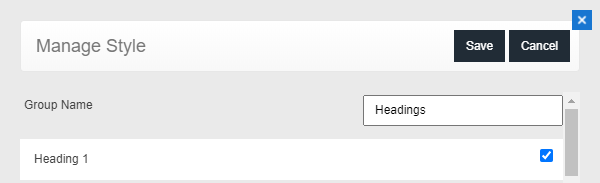
mceclip0.png


2. On the next screen, you will be taken to the style manager. First, let's create a new Heading. Press Add

mceclip1.png


3. Here, you can name your style item, and apply different options to it. For the font selection, only fonts that you have configured against this product will be available. Here is a full list of options you can choose from:

  • Font Family
  • Bold
  • Italic
  • Underline
  • Strike
  • Font Color - you can either type in the Hex code OR select from the palette
  • Font Size
  • Alignment - left, right, or center
  • Opacity
  • Leading
  • Word Spacing
  • Character Spacing
  • Paragraph Spacing

Checking any of these items will save it against this specific style item. Once you have made your selections, press save. 
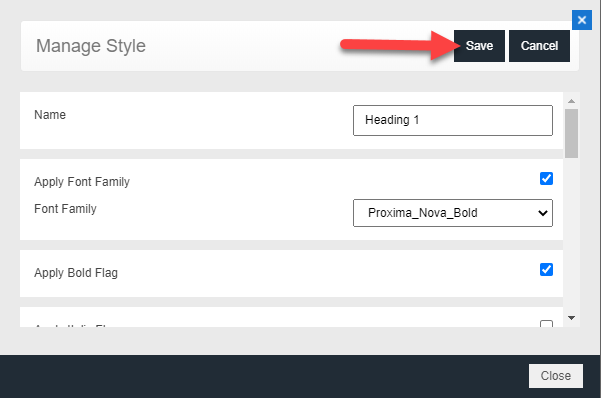
mceclip2.png

You will now see your style item saved in the style manager:
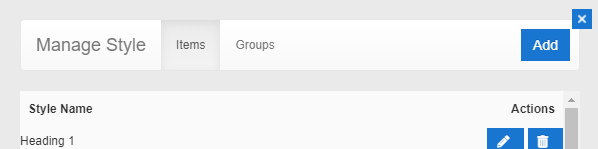
mceclip3.png


4. Now that you have a style item, you need to create a style group to assign it to. To create a style group, simply press Groups then Add.

mceclip6.png


5. Name your style group, in this example it is named Headings. Press Save

mceclip7.png


6. Now you will see you have a Headings Group. To apply your style item to the style group, press the edit button. 
mceclip8.png


Then, select the style item you just created:

mceclip9.png


Press Save. 

At this point, please save as product default so your style is saved across this product.

mceclip14.png


7. To apply this to a text field, simply click the text field, and navigate to the final tab. You will want to find the setting Assign Style Group. Choose Headings.

mceclip10.png


8. In the text field, you will now see an option to choose a style in the main tab. This will allow your user to change the styling on the fly. Be sure to save your product as default after you are finished. Below is an example of this:

Note the default styling:

mceclip12.png

When the user chooses Heading 1, the entire field will change styles on the go.

mceclip13.png


There is no limit to the number of styles you want assigned to a group. Please keep in mind that only one Style Group can be assigned per Text Field. You can also assign a Style Item to multiple Style Groups. 


Assign Background Categories to a Layout


We have recently introduced the ability in MegaEdit to assign specific background categories to specific layouts. Previously, the only way you could limit a background was with page tags, now, you can manually assign a background category to a certain layout, and that background category will only appear for that layout. 

For example, you may have a layout that only fits with a very specific background category - such as a 2 Column Layout with a 2 Column Background Category. Previously users would be able to choose backgrounds found in other categories. Now, you can assign the 2 Column Background Category, to the 2 Column Layout, therefore restricting users to use only that specific background for that layout. 

In the steps below, we will show you two simple layouts, assigned to two different background categories. 


Setup

1. Open your MegaEdit product, in the editor, go to Show Menu >  Product Options. Under the Left Pane, enable Layout Restrictions

mceclip0.png


2. In this example, two layouts have already been setup. Please either apply your layout to the page, or, create a new layout. If you are unsure how to edit or add a layout, please visit this article. Currently, we have Layout 1 applied to the canvas. From the image below, you can see that there are two background categories enabled. 


mceclip5.png

We want to only show the first background category on this layout. 


3. Now, save your layout, be sure it is in the correct layout category. Please select the background category you want available for this specific layout. In this example, we chose 'Backgrounds' as this one has the solid colors. 

mceclip6.png

Press OK. Then either save if this is new, or overwrite the existing layout. 

4. To see the changes take effect, either reapply the layout to the canvas, or refresh the page. You can see now, that the Background Category that was assigned, is the only one available for this layout. 

mceclip7.png


5. Similarly, we want to limit the backgrounds for our other layout. Using the steps above, we are limiting Background 2 to Layout 2:

mceclip8.png


You will see, this layout does not have the same background category available as Layout 1:

mceclip9.png


Dynamic Form Builder


This feature has been developed over a period of time to enable our users to create and manage forms to drive the personalisation experience in MegaEdit. Under the hood it is a MegaEdit script that, through a series of field tags, lets you dynamically control the form that is displayed to users based on what content is being shown on the canvas.

The configured form can control the following aspects of your product:

  • Field (per field control)
    • Image field
      • Image Upload with image position controls 
      • Clipart Select
      • Mask Select
    • Text field
      • Single line input with Font, Size, Bold and Italic options
      • Multi line input with Font, Size, Bold and Italic options
      • Dropdown text select for predefined text
      • Alternative background selector which allows the dynamic changing of text color for all text fields.
    • Custom field (Barcode)
      • Single line input for entering the custom data value (ex: barcode nr). Currently there is no validation.
  • Page
    • Layout (per page control)
    • Background (per page control)
  • Canvas
    • Size (global control, affects all pages)


Below we talk through the steps in order to set this up and start using it on your products right away.

Please note: All fields should be controlled using the form for the product.  We do not advise use of some form fields and some standard fields.  This could cause data replacement issues


Setup

Step 1 - Enabling the script

Firstly you need to enable the Dynamic Script 'Dynamic Form Builder', you should find this in your list of scripts against the dynamic products where you assign canvas, stock, clipart assets etc.  If it is not showing then please contact the helpdesk to get this enabled on your storefront or platform.

This is done within Catalogue > Product Types > MegaEdit > MegaEdit Products > Edit > Scripts tab


Step 2 - Setting up the tags and script config to build up your form

Deciding on where to display the form

Form can be displayed on the right side in it's own are or as a tab along with the gallery / cliparts / layouts. By default the script will load on the right side of the canvas in its own dedicated area. (This form works best with the Arone theme in place)

Script option Default Value Possible Values Usage
RenderFormInCustomTab false true / false Setting this to true will generate the form as a custom tab along with the gallery / cliparts / layouts.

Field Tags:

The script works by tagging fields with specific values, below is a list of the available tags and how they should be used.

To add a field tag, simply add the field to the canvas and then open the Text or Image options dialogue. As an admin you should see a 'Details' tab where you can configure your field restrictions and exact coordinates, scroll down until you see the 'Tags' property under the 'General' header.

NOTE: When adding multiple tags, please do not add any spaces but delimit the different tags using a pipe delimiter '|'


Field Tag value Info Usage
Image ImageField This will create an image control, allowing users to upload images and then edit and control them For all image fields
Image ClipartField This will create a clipart selection when tag is enabled but on certain fields you may want to restrict the clipart ui, allowing users to select a predefined image from a clipart category. For all image fields
Image ClipartAlbums_XXXX Restrict access to the defined Clipart albums. Replace XXXX with the album name. Ex: You have Album1, Album2, Album3 and you want to limit the shown cliparts to Album1 you would add "ClipartAlbum_Album1". If you want to give access to multiple albums the album names are delimited by the ; character. "ClipartAlbum_Album1;Album3"

For image fields

with the ClipartField tag.

Image MaskField This will create a mask select ui, allowing users to select a predefined mask from a mask category. For all image fields
Image MaskCategories_XXXX Restrict access to the defined Mask categories. Replace XXXX with the category name. Ex: You have Category1, Category2, Category3 and you want to limit the shown cliparts to Category1 you would add "MaskCategories_Category1". If you want to give access to multiple albums the album names are delimited by the ; character. "MaskCategories_Category1;Category3"

For image fields

with the ClipartField tag.

Image NoOptions Restricts image position options being shown for specific text fields. When useImageOptionsis enabled but on certain fields you want to restrict this
Text TextField Generates a simple text input, single line only When you want to collect simple information, like 'Firstname', 'Lastname' etc.
Text TextArea Generates a multi line text area input that will allow your users to enter in paragraphs of text with carriage returns When you want to capture larger amounts of text.
Text PredefinedText This will generate a drop down list of pre-defined content See Advanced configuration section below
Text BackgroundColor

Generates a colour swatch which lets the user select the background colour of all the fields tagged with TextField, TextArea, PredefinedText.

Supports CMYK: #hexcodeSwatchColor,Background C 1-100:Background M 1-100:Background Y 1-100:Background K 1-100,Text C 1-100:Text M 1-100:Text Y -100:Text K 1-100

BackgroundColor|#ffffff,0:0:0:0,0:0:0:100|#000000,0:0:0:100,0:0:0:0


Supports RGB: #hexcodeBackgroundColor,#hexcodeTextColor

BackgroundColor|#ffffff,#000000|#000000,#ffffff
Can be used as a full canvas spanning text field that sits in the background to allow a background colour change easily.
Text NoOptions

Restricts advanced text options being shown for specific text fields.

When useTextOptionsis enabled but on certain fields you want to restrict this


Field related script config:

Script option Default Value Possible Values Usage
useImageOptions true true / false Setting this to false will disable image controls for all fields. Please use NoOptions field tag if you need to disable it for only specific fields.
useTextOptions false true / false Setting this to true will enable the text options: Font Select / Font Size select / Bold / Italic. Please make sure that your fonts support both bold and italic options. Font size select will not show up if "Fit to box" under advances text options of fields is enabled. Please use NoOptions field tag if you need to disable it for only specific fields.
predefinedText [] User controlled objects, please see instructions under Advanced configuration further down the article.

Configure predefined text options.

Value and label shown in the dropdown.


Page Tags:

The script works by tagging pages with specific values, below is a list of the available tags and how they should be used.

To add a page tag, simply go to the product menu and select edit page data. Once page tags have been added please save as product default.

NOTE: When adding multiple tags, please do not add any spaces but delimit the different tags using a pipe delimiter '|'


Tag value Info Usage
AllowLayoutSelect This will create a layout select button Allow layout selection for the specific page
LayoutCategories_XXXX Restrict access to the defined Layout categories. Replace XXXX with the category name. Ex: You have Category1, Category2, Category3 and you want to limit the shown Layouts to Category1 you would add "LayoutCategories_Category1". If you want to give access to multiple albums the album names are delimited by the ; character. "LayoutCategories_Category1;Category3"  
AllowBackgroundSelect This will create a background select button For all image fields
BackgroundCategories_XXXX Restrict access to the defined Background categories. Replace XXXX with the category name. Ex: You have Category1, Category2, Category3 and you want to limit the shown cliparts to Category1 you would add "BackgroundCategories_Category1". If you want to give access to multiple albums the album names are delimited by the ; character. "BackgroundCategories_Category1;Category3"  


Page related script config:

Script option Default Value Possible Values Usage
AllowCanvasSizeSelect false true / false Setting this to true will create a dropdown allowing the users to select the canvas. This is a global setting so on change it will update the size of all pages. 
SizeControlAttribute false false / "AttributeName"

Ex: If you have a product attribute called Product size (this is the name, not the friendly name) and you wish to control the canvas via this attribute, you will need to set the config to: SizeControlAttribute : "Product size"

In this attribute the values have to be the same as the Canvas Size name (not Canvas name).

How to configure canvas size name:

Once a canvas is created in admin, access it and under the sizes tab you will have all the availiable sizes. Scroll to the riigh side of the table click edit and change the value in the first column to define the Canvas Size name (named Default by default)


Step 3 - Controlling your form inputs friendly labels

Fields:

Set the text that is shown as the label for each field in the UI by adding the text to the fields Name input. (Similar to how you input the tags, just as the field name)


Page layout and background:

The labels for these are controlled via language string and are shared across all products that use the script.

dynamicui.layoutselecttitle

dynamicui.backgroundselecttitle


Canvas size:

The label for this is controlled via language string and are shared across all products that use the script.

dynamicui.canvasselecttitle


All language strings relating to the form builder contain: dynamicui


Step 4 - Control the order in which your form elements are presented

If you want to be able to decide on the order in which the field controls appear within the form then you can use the Sequence number property.

(Similar to how you have been inputting the tags and names, just look for the Sequence number setting and add your numbers going low to high here)


At this point you have all the simple steps in place in order to start using this functionality. However, if you want to see and control more about how the script works then read on for more advanced configuration options.


Step 5 - Controlling the content

Using the Form Builder script means that you are controlling the content of fields via the form. Therefore it is important to ensure that certain field properties are set when building your products.

  • Do Not Select - This is something we suggest you assign to all your fields and should most definitely be used when you have a fixed layout and do not want the users to be able to move or resize the fields. This way all the control and content is handled by the form.
  • Fixed Text - If you want to allow users to be able to move and resize the fields then we recommend ensuring the field property Fixed Text is enabled against the field. This means that they are not able to enter text into the Text Field directly and it is controlled by the form.


Step 6 - Advanced configuration

Every MegaEdit script has a configuration that can be assigned to it, generally if nothing is set against the product then it will use whatever default configuration is pre-defined in the script.

Below we talk through all the possible advanced configuration options you have available and how you can use them.


Field Zooming - Enabling this will make it so that when you are entering information into a form field the editor will zoom into the specific field you are editing.

Default: disabled

zoomEnabled: false


Enable/Disable Image gallery usage - Allow for the gallery to be used and displayed as part of the form for image controls. When disabled it will not be visible and users will have to upload an image from an image source each time.

useGallery: true


Layout handling feature -  Will create a new 'Select Layout' button in the top bar that when clicked can provide layout support based on additional configuration (below). When clicked a popup will appear with layout options.

useLayoutQuickSelect: true

Create a layout mapping as an array to control what options are presented to the user, if they should be driven by an attribute selection on the product landing page, and then what layout should be used once ready.

layoutMapping: [{ name: 'Design 1', // Name shown in the UI when selecting attributeValue: 'Yes', // This needs to be defined only if we map it to a product attribute value pages: [{ nr: 1, // page number (not index) layout: 'Design 1 page 1' // Layout name to be applied }], thumbnailUrl: '/-383467866/Handler/CSSOverride/GetImage/3/layout_thumb_logo.jpg' // allows to have a css override image shown for the layout selection }]

To enable the Layout selection popup to appear when the editor loads you can set the below configuration

startOnLoadLayoutQuickSelect: true


Enable multi language support - Create your own language strings to be used on the form field titles (languagestrings start with: me2k.editor.)

Example: me2k.editor.{customprefix}_{fieldname} - me2k.editor.rickysstore_firstname

In this scenario we recommend adding a prefix to ensure it is unique and then the field name should read exactly as 'rickysstore_firstname'.

useLanguageStringsForFieldTitles: true


Field Groups - Allows you to group fields by name to then generate a single form input for all in that group.

fieldGroups: true


Pre-defined Text configuration - As mentioned in the table above you can offer a drop down list form input with pre-defined selections.

You can create multiple mappings with multiple options depending on how you want to use it.

This example below is for a text field with the following tags "TextArea|PredefinedText|Predef1" and using field Name "My Selections".

It will add a dropdown form element in the editor with a label of "My Selections" and will have 3 options (Dropdown option name 1, Dropdown option name 2, Custom)

Dropdown option name 1 will populate the field on the canvas with the contents of an editable content area called 'PredefinedText_Option1'. This is a custom editable content block created in admin.

Dropdown option name 2 will populate the field on the canvas with the text 'This is the simple predefined text for option 2'

Custom will create a free type text box (TextArea or TextField tag needs to be added to the text field) In the form for the user to add their own text'.  Only the title Custom works here - any other name will not allow a textarea field.


predefinedText: [{ customTargetTag: 'Predef1', //Define the unique tag for the field you want to use this on options: [{ title: 'Dropdown option name 1', // Option name, to be shown in the dropdown isEditableContent: true, // Define if the options source is editable content. editableContent: 'PredefinedText_Option1', // Define the name of the editable content value: '' // You can use this if you dont wish to use editable content as you have a non formated string that should be added to the text field. }, { title: 'Dropdown option name 2', isEditableContent: false, editableContent: '', value: 'This is the simple predefined text for option 2' }, { title: 'Custom', //Use this name only to create a custom freetext area
isEditableContent: false,
editableContent: '',
value: 'Add your own' }] }]


Step 7 - Loading data from attributes:

The script has the ability to load the following based on attributes:


Setting canvas size:

Configured via script config: SizeControlAttribute

  • Default value: false
  • Possible values: false / "AttributeName"

Ex: If you have a product attribute called Product size (this is the name, not the friendly name) and you wish to control the canvas via this attribute, you will need to set the config to: SizeControlAttribute : "Product size"

In this attribute the values have to be the same as the Canvas Size name (not Canvas name).

How to configure canvas size name:

Once a canvas is created in admin, access it and under the sizes tab you will have all the available sizes. Scroll to the right side of the table click edit and change the value in the first column to define the Canvas Size name (named Default by default)


Setting page and field data:

Configured via tag: LoadFromAttribute_AttributeName~PropertyTarget;AttributeName~PropertyTarget

  • Tag starts with: LoadFromAttribute_
  • AttributeName is the attribute from which the value should be pulled.
  • ~ character separates the attribute name from the property target
  • PropertyTarget is what defines what the attributes value should be used for
    • PropertyTarget can be set for pages as:
      • Layout
        • Attribute value needs to be LayoutCategoryName:LayoutName and in case this has to apply to a spread the layout needs to be saved as a spread.
        • Ex tag: LoadFromAttribute_AttributeName~Layout
      • Background
        • Attribute value needs to be BackgroundCategoryName:BackgroundName and in case this has to apply to a spread the layout needs to be saved as a spread.
        • Ex tag: LoadFromAttribute_My background Attribute~Background
    • PropertyTarget can be set for
      • all fields as:
        • Background 
          • Attribute value needs to be a hexcode or cmyk code: #000000 or (100:100:100:100)

          • Ex tag: LoadFromAttribute_My field background Attribute~Background
      • image fields as:
        • Clipart
          • Attribute value needs to be ClipartAlbumName:ClipartName.

          • Ex tag: LoadFromAttribute_My clipart Attribute~Clipart
        • Tint
          • Attribute value needs to be a hex code: #000000

          • Ex tag: LoadFromAttribute_My tint Attribute~Tint
        • Mask
          • Attribute value needs to be MaskCategoryName:MaskName.

          • Ex tag: LoadFromAttribute_My mask Attribute~Mask
      • text fields as:
        • Colour
          • Attribute value needs to be a hexcode or cmyk code: #000000 or (100:100:100:100)

        • Value
          • Attribute value will be taken as a string and added to the field

  • You can set multiple aspects for a field or page by using the ; character to delimit them
    • ex: LoadFromAttribute_My Clipart Attribute~Clipart;My Mask Attribute~Mask;My Tint Attribute~Tint


Step 7 - Saving data to attributes:

  • Field values can be saved against an attribute by adding the tag

    • SaveToAttribute_{Attribute Name System name}

    • Use SaveFieldsToAttributes: true in script config to enable the feature.

    • This can be used without creating an attribute beforehand as the script will create a new attribute if it can not find an existing match


Example of full script config:

{ RenderFormInCustomTab: false,
ShowFieldsAllPages: false,
AllowCanvasSizeSelect: false,
SizeControlAttribute: false,
IgnoreMegaEditLayoutHandling: true,
SaveFieldsToAttributes: false,
fieldGroups: false,
paddingFactor: 0.0,
zoomEnabled: false,
useGallery: true,
useTextOptions: false,
useImageOptions: true,
useLayoutQuickSelect: false,
useLanguageStringsForFieldTitles: false,
layoutCategoryFilter: 'Layout',
startOnLoadLayoutQuickSelect: false,
layoutSelectTitle: 'Select Layout', syncLayoutWithAttribute: false, syncLayoutWithAttributename: 'Design', layoutMapping: [{ name: 'Design 1', attributeValue: 'Design 1 Option', pages: [{ nr: 1, layout: 'Design 1 page 1', }, { nr: 2, layout: 'Design 1 page 2', } ], thumbnailUrl: '' }, { name: 'Design 2', attributeValue: 'Design 2 Option', pages: [{ nr: 1, layout: 'Design 2 page 1', }, { nr: 2, layout: 'Design 2 page 2', } ], thumbnailUrl: '' } ], predefinedText: [{ customTargetTag: 'Predef1', options: [{ title: 'Dropdown option name 1', isEditableContent: true, editableContent: 'PredefinedText_Option1', value: '' }, { title: 'Dropdown option name 2', isEditableContent: true, editableContent: '', value: 'This is the simple predefined text for option 2' }, { title: 'Dropdown option name 3', isEditableContent: true, editableContent: 'PredefinedText_Option3', value: '' }, { title: 'Dropdown option name 4', isEditableContent: true, editableContent: 'PredefinedText_Option4', value: '' } ] } ] }


Script default config:

{ textAreaTag: "TextArea",
textFieldTag: "TextField",
customAreaTag: "CustomArea",
customFieldTag: "CustomField",
imageFieldTag: "ImageField",
clipartFieldTag: "ClipartField",
maskFieldTag: "MaskField",
predefTextTag: "PredefinedText",
backgroundColorTag: "BackgroundColor",
RenderFormInCustomTab: false,
ShowFieldsAllPages: false,
AllowCanvasSizeSelect: false,
SizeControlAttribute: false,
IgnoreMegaEditLayoutHandling: true,
SaveFieldsToAttributes: false,
fieldGroups: false,
paddingFactor: 0.0,
zoomEnabled: false,
useGallery: true,
useTextOptions: false,
useImageOptions: true,
useLayoutQuickSelect: false,
useLanguageStringsForFieldTitles: false,
layoutCategoryFilter: 'Layout',
startOnLoadLayoutQuickSelect: false,
layoutSelectTitle: 'Select Layout',
layoutMapping: [],
syncLayoutWithAttribute: false,
syncLayoutWithAttributename: 'Design',
predefinedText: [] }

Can I rename Fonts?


No, we advise against renaming fonts as this will cause errors wherever the font is in use. If you would like to rename a font, then we suggest you reupload it with the new name. 

Can I hide the left-hand-side menu in the MegaEdit Editor?


Yes this is configuration partly and customer role dependent too. If you set the background category being used to admin only then it will hide from the end user. That can be done directly on the product canvas being used and then setting the background category. If its imported from InVent then it should be set as admin only anyway.
 If you are an admin user you always see these left sided tabs as default.  A registered user will only see items there if it is enabled.

Why are my copy and paste, and cut keyboard shortcuts not working in MegaEdit?


There are two settings in MegaEdit Editor under 'Menu' > 'Product Options' > scroll to section 'Basic Features' that you'll need to ensure are unticked

Can I create a pop up message in the MegaEdit editor?


Yes. Using editable content blocks and assigning one to the MegaEdit product you want to display the message on. Navigate to Editable Content in Admin and under the custom tab section add a new content block. You could call it "MegaEdit instruction panel 1" for example. You can adjust the content as you require.  Then simply assign that to any product under the MegaEdit product section for instructions.

Can I create a pop up message in the MegaEdit editor?


We don't recommend you copy Invent ME products, we suggest you create the product from scratch rather.

Creating a MegaEdit product with Invent template


Preview Handling Script


This is a Megaedit script that enables an admin to hide/show/print/not print certain pages of a document based on key tag words that are applied to speific pages.


Setup

You'll need to make sure that the Preview handling script is enabled on your storefront and appears in the script list against your dynamic products.  (please raise a ticket with support helpdesk if this needs enabling).  Once enabled against your chosen product the rest of the configuration is done directly in the MegaEdit editor.

Screenshot_2021-01-13_at_13.44.04.png

The script is set to work against 'tags' being used at page level in the editor.  The key tags to use are 'print' or 'preview'.

print = page will appear on output but not show in editor

preview = page will show in editor but not appear in output.


Open the editor of your product and go to the Menu section and acces the Edit page data section

Here you are required to use the tags mentioned above for each page example shown below:

Screenshot_2021-01-13_at_16.34.28.png

You will need to click save and save the product default to make those tags save against the product.


This will mean that page 1 will be hidden from view of the end user but still appear in the output print file - Page 2 will show in the editor but not appear in the output file.  Page 3 will be seen in editor and in the output print file as it has no tags.


Incomplete

Can’t find what you need?

Ask our Infigo Support Team for help..

🔎
Loading…
    Select a Problem Solver