Introduction:
One of our latest projects introduces the new Shopify module. This means you can now create a Shopify storefront and link your Megaedit products within Infigo to give customers a seamless experience. By using this module, customers will enter a Shopify storefront, find the products they need, be taken to our editor to edit their product and then taken back to Shopify where they can checkout.
If you are interested in this module and would like more information about functionality and cost, please raise a ticket to our support team - Click Me
Set Up:
Once the module has been set up and enabled for you, then you are ready to make a start!
You can use existing or create new Megaedit products. Once you have the products created within Infigo, you are ready to start the process of linking products! For the next steps, you will need to head to your Shopify storefront.
You will need to create products within Shopify, this will allow the link between Shopify and Infigo to take place. To do this, you will need to log into your Shopify storefront, and head to 'Products' in the left hand toolbar:
Once in 'Products', select 'Add Product':
It is important to note, that when you create a new product within Shopify, this is what the end user will see. The only section of Infigo that the customer will see, is the Megaedit editor. Once you have created the products within Shopify, you are ready to link them with Infigo!
Linking Products Between Infigo and Shopify:
To Link products between Infigo and Shopify, you will first need to 'Sync' the products from Infigo, to do this, you will see an option in the left-hand tool bar to select 'InfigoIntegration':
Once this has been selected, you will see some options in the top right hand corner, you will need to select 'API Settings':
Within the API settings, there is an option to 'Sync Products Now', selecting this will sync the products you have created in Infigo and allow you to link them to your Shopify products. This Sync does automatically take place overnight but if you need to sync the products sooner, then you have the option below:
Once the Sync has taken place, it's time to link your products together. From the page above, select the 'Products' button, this will then show you all of the products that have been synced from Infigo:
Now it's time to select the product you wish to link by selecting the 'Link' button next to the chosen product.
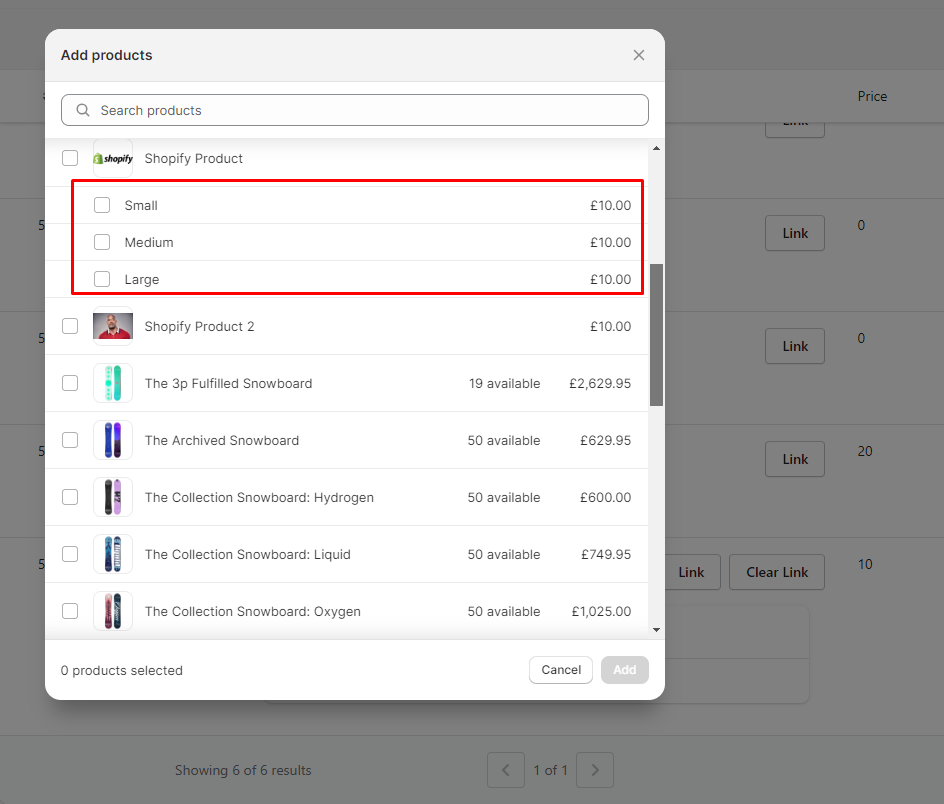
Selecting 'Link' will open a new window, where you can choose the product in Shopify you wish to link to.
You will then see that the product has now been linked from Infigo to Shopify:
You can then find the product on the front end of your Shopify storefront and select 'Create':
This will then take you through to the Megaedit Editor:
Once saved/added to basket in the editor, it will take you back to Shopify and add the item to the customers basket, where they can complete the normal Shopify checkout.
Using Variables within Shopify
A current limitation of using the Shopify plugin is that 'Attribute Combinations' do not directly link with Shopify. This means if you have for example, a t-shirt product with a size and colour, this will need to be set up as a separate product within Infigo. Even though it is a separate product within Infigo, it can be still be linked to the same Shopify product using 'Variants' within Shopify.
To set this up, you will need to head to the product in Shopify that you need to add a 'Variants' to. If you scroll down the page, you will see an option to 'Add Option Like Size or Colour'.
If you select this, you will get a new drop down where you can add the different variants, and select 'Save'
Once this has saved, you can now link products from Infigo to the correct 'Variant' using the methods that was shown in the begging of this article. Once you have run the Sync, you can then choose an Infigo product to link to the variant of your choice.
Sub-Domain URL
One thing to note within the process is domains. You will need a separate domain for both the shopify site and the Infigo site. This means both sites cannot share the same URL. You can keep the infigosoftware.com binding for your Infigo storefront or you can change this at anytime, as long as it is a different domain from your Shopify storefront, for example:
Correct Scenario:
Shopify URL - ilovelabels.com
Infigo URL - editor.ilovelabels.com
Incorrect Scenario:
Shopify URL - ilovelabels.com
Infigo URL - ilovelabels.com
If you have any questions about this, please feel free to reach out to the support team by raising a new ticket.