🚀 MegaEdit Problem Solvers 🚀

Picture of 🚀 MegaEdit Problem Solvers  🚀

Getting Started with MegaEdit


MegaEdit is our flagship editor for document editing as well as the creation of photo-gifting products such as Photo-books, Calendars, Corporate Gifts etc. It's intuitive user-interface and editing options allow end users to personalise documents with ease. 

Accessing MegaEdit

1. First you must Add a Product to Infigo

2. Then you can Create a MegaEdit Product

Now that you have your Dynamic Product created, you can get started!

*To learn more about the functions of MegaEdit, read Using the MegaEdit Editor for more information. 


3. Navigate to your Product within your storefront, and press Start

4. You are then directed to the MegaEdit editor (Editor shown below)


How do I use the MegaEdit Editor?

MegaEdit’s web to print feature offers an intuitive built-in editor to customize your printing needs. The editor is user-friendly, simple, and easy to use.

The following figure illustrates the various features available in the editor.

USME.png

Option Description
The Main Canvas area helps you drag and drop images and edit the front/back and other pages of your phonebook or photo gifts.

This section helps you:

This section helps you:

This section helps you:

  • mceclip7.png- Open the editor in fullscreen mode
  • mceclip8.png- Zoom in /Zoom out page view.
  • mceclip10.png- Reset the zoom to default setting.
  • mceclip11.png- Navigate between left and right pages.
  • mceclip6.png- Preview the product in a new window as photobook pages.

This section shows the list of pages that will be included in the photobook or photo gifts.

mceclip14.png - add a new page to your product

This section helps you:

Text Alignment Options in ME Products

This article explains the available text alignment choices within the ME products. Currently, the system supports only three options: left, center, and right alignment.

When creating products through both the Invent and Form Builder interfaces, users may notice that the 'justify' text alignment option is not available. This limitation is by design and applies to all products.

If your workflow requires full text justification or you expected an additional alignment option, please note that enhancement requests are evaluated periodically. For now, the system supports only the three aforementioned alignment choices.

Use cases

  • Editing text in products where different alignment options are required.
  • Evaluating product templates in both Invent and Form Builder environments.

Key settings in Infigo

  • Text Alignment Options: Located within the product editing section in both ME Invent and ME Form Builder interfaces.
  • Graphic Editor Settings: Accessible from the main product configuration area where text customization is enabled.

Step-by-step guide

  1. Log in to your account and navigate to the product editing page for either Invent or Form Builder.
  2. Open the graphic or text editing section where alignment options are displayed.
  3. Observe that the available options include left, center, and right alignment only.
  4. Confirm that the 'justify' alignment option is not present, as this feature is not yet supported.
  5. If you need further clarification or wish to request new functionality, contact Customer Support for assistance.

Related links

For additional guidance, head over to the Infigo Academy or contact our Customer Support team.

How to Add a Layout when Adding a New Page


This article is going to explain how to setup your MegaEdit product so that when a user adds a new page, the layout on the previous page is retained. This can be very useful if your customer wants to add more pages and the layouts are static. 

There are two prerequisites for this to work, you will need to create a layout category, and then create a layout. 


MegaEdit Steps

1. First, you will need some layouts applied to your canvas, or simply created. Below you will see I have a basic four image layout on my canvas. 

2. After you have your layout created, you will need to navigate to Show Menu at the top. 

3. Now hit Edit Page Data


4. Now, you will need the name of the Category your layout is in as well as the name of the Layout. 

In this example, my layout category is named "Default Layouts" and my layout is named "4 image layout". 


5. With this information, you will fill this in under the New Page Defaults section, in Layout. 


6. Input layout category name first, followed by a pipe "|" character, then the name of the layout. Here is an example of how this would look:

Default Layouts|4 image layout


*Be sure to not have any space between the pipe character, and that the names are exact (this is case and space sensitive). 


7. Hit Save. Then Save as product default. Refresh your page. 

8. Now, when you add a new page, the layout will automatically populate!

How to Create a Text Curve in MegaEdit

On the product click edit > MegaEdit > scripts, there is a text on curve field option > tick it (if it is not in the list raise a ticket with helpdesk to enable this for you chosen storefront or platform)


On the product itself navigate to fields > add text on curve

 
There is a curve option


In this field you will need to add the values you can get from a new webpage by adding "/toch.html" to the end of your URL.  Example mycompanyname.infigosoftware.com/toch.html

please note that the "Show render mode" setting is not supported on custom fields which this script uses.  So there is limited font styling available

Screenshot

How to Enable Bullet Point Support

We have created a new MegaEdit script that supports bullet points.

The setup and configuration of this is by an admin only at this point and the way it works is by first enabling the ‘Bullet Point List’ against the product by selecting a dynamic product and then navigating to the ‘Scripts’ tab and checking the ‘Bullet Point List’ script. There is also some configuration that needs adding:

 {

  mode: "image",
  
image: {
    clipartAlbum: "Food",
    clipartName: "Burger"
  },
  
position: {
    x: -25,
    y: 5,
    width: 20,
    height: 20
  },
  
text: {
    font: null,
    fontSize: null,
    color: "#ff0000",
    character: "*"
  }
}


The ‘mode’ item allows you to determine whether a clipart image or specific font and character is used as the bullet point (either ‘image’ or ‘text’). Selecting ‘image’ will mean it inserts the clipart image declared in the image item – declaring both the clipartAlbum and the clipartName of the image you want to use. Selecting ‘text’ will mean it uses the configuration declared in the ‘text’ item – font (family), fontSize, color and the character. Position is where it gets positioned in relation to the text you have in the text field allowing you to give it an offset to the left/right.
Once enabled, open the product in MegaEdit and create a text field. Then set the tag ‘bulletpointlist’ on that field. The way it works is that any time it detects a line break it will insert the configured bullet point symbol.

How to Add Clipart?


The MegaEdit Editor allows you to add built-in clip art to your page(s). The clipart will not affect Image Variables and has many of the same settings as a photo from your gallery. 

First, you have to Create a Clipart Category, then you will have access to the Clipart Tab within MegaEdit. 


Adding Clipart

1. Open the MegaEdit editor as described in section Getting Started with MegaEdit.
    The Editor homepage is displayed.

    MEditor.PNG
2. Select the page for which you want to add clip art. The Page list option displays the pages.

landscapelist.PNG


3. Click on the  option.
    The clip art list is displayed.


4. From the drop-down menu, select the clip art category. For example, Stock Photos.

5. Select the clip art and drag it on to the page(s).

The changes are auto saved and the clip art will be added to the page(s).


6. Clipart will not affect Image Variables such as these:


7. The clipart does not interact with them at all, and you can still put photos in the variables from you photo gallery. 


How to Add a New Page?


After creating a MegaEdit Product, you will be able to edit various settings, one of these is the number of pages available within your product. Here we show you how to add more pages to your MegaEdit Product.


Infigo Steps

1. After creating your dynamic product, navigate to the product's Product Properties tab. 

ANP01.PNG

2. Here you will see the Minimum number of pagesand Maximum number of pages. You must have a minimum of one page. Catfish defaults this minimum to two pages. If Booklayout is enabled, you must have a minimum of two pages. 

ANP02.PNG


3. Next, using either the drop-down or by typing, add in the amount of pages you want in the Maximum number of pages option, in this example, we use four.  

ANP03.PNG

4. Press either SAVE.PNG in the top right corner of the screen for these changes to be applied. 


Working in MegaEdit

1. Open the MegaEdit editor as described in section Getting Started with MegaEdit. The Editor homepage is displayed.


ANP04.PNG

    
2. Navigate to the Page list editor (See Red Arrow in above).

3. Select the page where you want the new page to be placed. The selected page will have a gray background and white pointer in the center of a green circle. The new page is always added to the right-side of the selected page. 

AddNEw2.PNG

4. Click on the AddNEw.PNG option.


5. You will now see the pages that were added. Remember, in this example we used a maximum of four pages. Pressing on the AddNEw4.PNG icon will remove the page. The changes are auto saved in the editor.

AddNEw3.PNG


How to Add Image Files to a MegaEdit Product?


You can add images on to the editor and then use those for your MegaEdit Product. 

To add an image file to the editor,

1. Open the MegaEdit editor as described in section Getting Started with MegaEdit.

    The Editor homepage is displayed.

  mceclip0.png

2. Click on the +Add files

mceclip1.png


Your computer's file explorer will open, choose the image(s) you want to add to your product. 


3. The Choose a default album page will display. 


   You can either select the Default Album or Create a new album and then select that album.

3. Select the Create a new album option.
4. Enter a name for the album.
5. Click Start.

6. Your newly created album will appear in the Image Gallery Tab. You can also continue to add images to your album by selecting your newly created album. 

The image(s) will be added to the album and listed on the editor. For example:

mceclip2.png

The changes are auto saved on the editor.

You can create multiple albums and then choose the appropriate album and the images to be used for the product.

How to Add Images to a MegaEdit Product?


The MegaEdit editor allows you to add images either as a variable field, or directly from your album in the Image Gallery or Clip art selection. 


To add image variable fields to a product:

1. Open the MegaEdit editor as described in section Getting Started with MegaEdit.
    The Editor homepage is displayed.

mceclip0.png

   
2. Select the page for which you want to add the images. The Page list option displays the pages, this is found in the bottom left corner of the editor. 

mceclip1.png


3. Click on the Add Image option found in top left editor pane. You can also drag it to the canvas. 

mceclip2.png
 

5. The Image Variable field will appear on your canvas.

mceclip3.png


4. Double-click on the added image field and you can find image customization options.

  mceclip4.png

5. Changes are auto saved in the editor.

The following table describes the various options for customizing images:

Option Description
mceclip6.pngImage Options

Helps you with additional image options such as:

  • Scaling
  • Transform
            - Rotate Left/Right
            - Flip Vertical/Horizontal
  • Arrange
            - Move Forward/Back
            - Send to Front/Back
  • Manage

            - Reset
            - Remove
            - Delete

-Duplicate

mceclip7.pngEffects

Helps you with options for adding image effects such as:

  • Effects
            - No Effect
            - Black and White
            - Sepia
            - Emboss
            - Invert
  • Opacity
  • Brightness, Contrast, Gamma, Pixelate, Tint
  • Sharpness, Blur
mceclip8.pngBorder and Background

Helps you with options for adding border and change background color.

  • Border Options
           - None
           - Solid
           - Outline
           - Distance

For each of the border options, you can set the Width, Radius, and Stroke.

  • Apply Background color
            - Opacity
mceclip9.pngShadow

Helps you with options to add shadow effects for the images.

  • Shadows On/Off
            - Offset X
            - Offset Y
            - Blur
            - Transparency
  • Color picker
mceclip10.pngDetails

This section has more advanced options for your Image Field, sections include:

  1. Field and Image Position Settings
  2. Movement Restriction
  3. General
  4. Image Format Options
  5. Help Settings


Adding Images to the Image Variable Field

1. After you created your image variable field, you can drag and drop an image from your Image Gallery tab into the field. Make sure you have images available, if not, visit our support article 'How to add image files to MegaEdit?'.  


2. When you have images available, select one and drag it to your variable field.


mceclip11.png

mceclip12.png


3. You can also drag an image from your Image Gallery or Clip art selection without having a variable field. 


How to Add Text to a MegaEdit Product?


With MegaEdit editor, you can add text and captions to your images.

To add text,

1. Open the MegaEdit editor as described in section Getting Started with MegaEdit.
    The Editor homepage is displayed.

    MEditor.PNG

2. Select the page for which you want to add the text. The Page list option displays the pages.

landscapelist.PNG


3. Press the Add Text option in the top left pane. You can also drag it to your canvas 


The text box will be added on the page. For example:

   
4. With the text box selected, click inside the text box.

    The Text Options window is displayed.


The following table describes the various options customizing text:

Option Description
 Text Options

Helps you with additional text options such as:

  • Fonts

        - Font selection
        - Bold
        - Italics
        - Underline
        - Strikeout
        - Font color
        - Font background color
        - Align left/center/right

  • Font Size Slider

- Allows you to change the font size by either sliding or typing 

  • Arrange
        - Move object forward/backward
        - Move object front/back
  • Manage
         - Delete
         - Duplicate this object
         - Fit text to box
         - Clear formatting
         - Save as default formatting
 Border and Background

Helps you with options for adding border and change background color.

  • Border Options

           - None
           - Solid
           - Outline
           - Distance

For each of the border options, you can set the Width, Radius, and Stroke.

  • Apply Background color

            - Opacity

  Shadow

Helps you with options to add shadow effects for the images.

  • Shadows On/Off

            - Offset X
            - Offset Y
            - Blur
            - Transparency

  • Color picker

5. Enter the text or caption in the text box.

You can add the same text to multiple pages by copying the text box object and placing it on other pages.

The changes are auto saved in the editor.


How to Reset the Changes?


With MegaEdit editor, you can reset the changes you made to the product. The changes will revert to the default settings on all the pages.

To reset the changes,

1. Open the MegaEdit editor as described in section Getting Started with MegaEdit.
    The Editor homepage is displayed.


2. Click on the Reset option. The reset warning message window is displayed.


3. Click Yes. The editor will be refreshed and the changes will be reverted to the default settings.

    The changes are auto saved in the editor.

How to add Fonts to MegaEdit


To add fonts to MegaEdit you first have to generate a "Font Kit". A Font Kit takes all of the information from your font file and converts it into a file set that web browsers can use. Below are some tools our customers use to generate font files.

Font Squirrel

Transfonter


Using Font Squirrel

1. Once you get there you will first click on the generate link as shown in the screenshot below:

mceclip0.png

2. Next click on the Upload Font Button.

3. A Folder will open on your system. Navigate to your font file and select it. You must only upload 1 font at a time. 


4. Select the "Expert" setting, select all the font formats WOFF, WOFF2, EOT (compressed or lite) TTF and SVG. You can leave all the other Expert settings at default. Alternatively you can also use the Optimal setting if you are uncomfortable with fonts. 

mceclip1.png


5. Click "Yes" to the Agreement at the bottom of the window and a new button will appear to Generate Your Font Kit. Click this button and the Font Kit will automatically be downloaded to your browser's "Download" folder. This file should be a ".zip" file. If not zip up the files it gave you into a zip file. You will load a .zip file up in the following steps.


Alternatively Using Transfonter

1. Press the Add Fonts button.

mceclip2.png

2. Select 1 font file from your machine.

3. Select TTF, EOT, WOFF, and WOFF2

mceclip3.png


4. Press Convert

5. Download your font file, you will receive a font folder to upload into Infigo. 


Uploading your font file to MegaEdit

1. Go to Infigo Admin. From Here navigate to Catalogue > Product Types > MegaEdit > MegaEdit General Data > Font Categories Tab


mceclip4.png


2. If you have not already create a new font category by pressing Add new record and naming your font category. You can also make these fonts only accessible to admins by checking Show only for admins. Once you have it setup press Insert. 


3. Now click the "Configure" Button on the Font category that you just created. First, upload your font folder from the screenshot below. 

mceclip5.png


After your font is successfully uploaded, then press Generate Font Data


mceclip6.png

4. You will know that the font successfully uploaded when you see the font file available.

mceclip7.png


5. Now, Clear Cache in the top right of Infigo Admin. 

(Additional font support can be found under the Info button in the font category)


6. Now, go to your MegaEdit product. You can do this quickly using the resource links on the right and pressing Products. Alternatively you can go to Catalogue > Product Types > MegaEdit > MegaEdit Products. 

mceclip8.png


7. Press Edit on the MegaEdit product you wish to add the font category to. Go to the Fonts tab, select your category, and press Save Changes. 


mceclip9.png


Congratulations! Your font has now been added to your MegaEdit Product!


mceclip10.png

Creating/Managing/Editing Canvas


One of the key components on MegaEdit is the Canvas. In the design world, the canvas represents the dimensions of the product.

Once you have created your Dynamic (MegaEdit) Product you will need to go to Catalogue > Product Types > MegaEdit > MegaEdit Canvas > and click Add New: 


You will then be directed to a new page where you can configure your canvas:

Name: Name of the Canvas. For example: A4 Portrait

Select a preconfigured dimension (optional): If you are unsure about the dimensions, you can use one of the predefined dimensions

Unit: Measurement unit

Width: Width of the canvas depending on the unit selected

Height: Height of the canvas depending on the unit selected


Manage Dynamic Product Canvas

Within this page, you will be able to see all the canvases created by storefront administrators. You will be also able to Add, Edit or Remove canvases. There is also an advanced setup to allow customers to create their own canvas dimensions rather than picking a pre-existing one. 


How to Create a Background Category?


Infigo allows you to create a Background Category that can be used in your Dynamic Product within MegaEdit. This will then allow you to access the Background selection tab in your product, see image below. 

mceclip0.png

This article shows you how to create a background category in Infigo's Admin to access this feature in MegaEdit. 


Admin Steps

1. Navigate to MegaEdit Canvas:

Catalog > Product Types > MegaEdit > MegaEdit Canvas 

2. Select Edit for the canvas of the product you want to edit

mceclip0.png

3. You must Create a Canvas in order to access the Background Categories tab. 

4. Navigate to the Background Categories tab

mceclip1.png


5. Press Add new record, then name your category, then press Insert.

1.  mceclip2.png 

2. mceclip3.png 

3. mceclip4.png


 6. Once your record is created, press Configure


7. To add an image for your background, navigate to the Background Images section. Press Choose Files to upload your image(s). 

mceclip6.png

8. To add a background color first press Add Background Color.

mceclip7.png

Background Colors can either be added by Choosing an RGB Value with the Color Selector or by typing the color directly. Once your color is selected, name it and press Ok. 

The name of the color does not necessarily have to match the exact color, nor does typing the color drive the color value. 


mceclip8.png


9. After you have your background images/colors created, you are now able to change your background color! 


How to Create a Layout Category?


Infigo allows you to create a Layout Category that can be used in your MegaEdit Product. This will then allow you to access the Layout tab in your product.  See image below. 

This article shows you how to create a layout category in Infigo to access this feature in MegaEdit. 


Steps

1. Navigate to Dynamic Products:

Catfish > Infigo Variable Data > Dynamic Products

2. Navigate to Canvas at the top of the page

3. You must Create a Canvas in order to access the Layout Categories tab. 

4. After your Canvas is created, press Edit 

5. Navigate to the Layout Categories tab


6. Press Add new record, then name your category, then press Insert.

1. 

2. 

3. 


7. Once your record is created, press Configure. 

8. In this menu, you can add themes and upload JSON files for previously made layout configurations. You can also make new layouts in the MegaEdit editor. 


9. Navigate to your Dynamic Product in your storefront, you Layout tab is now enabled. 


10. You are now ready to Add/Edit Layouts for your product!


How to Create a Clipart Category?


Infigo allows you to create a Clipart Category that can be used in your Dynamic Product within MegaEdit. This will then allow you to access the Clipart selection tab in your product.  See image below. 

This article shows you how to create a clipart category in Catfish to access this feature in MegaEdit.


Catfish Steps - Creating the Category

1. Navigate to Dynamic Products:

Catfish > Infigo Variable Data > Dynamic Products

2. Click General Data.

3. Here is the Edit General Categories section. By default you are in the Clipart Categories tab. Press Add new record.

4. Now name your category and press Insert. You can also add a description and make the category visible only to admins by checking the box Show only for admins. 

1. 

2. 

5. Once your record is created press Configure.


6. Here you can upload image files, only JPG, PNG and PDF are supported.


7. Once your image files are uploaded, then you have to enable the clipart category within your product. 


Catfish Steps - Enabling the Category in Your Product

 1. Navigate to your dynamic product, you can press Products in the top right of the page. 

2. Press Edit on your product.

3. Navigate to Clipart Categories.

4. Check the Clipart Category you created and press Save Changes.

1. 

2. 

5. Now you can add clip art to your Dynamic Product!!


Unable to Remove Images from Album


Deleting an image from an album may become problematic, due to the system saving jobs even after you have closed them down. To demonstrate this issue, this article will show you what happens when you upload an image, add it to the canvas, and navigate to a different page. 

There is also a solution on how to counter this, simply by saving the URL of the product within the editor, further details are ahead. 


Steps - Start a MegaEdit Product (We saved the URL when in the editor)

1. Upload Images to an Album. We are using two images to demonstrate why you cannot remove some images from your album. 


2. Drag the images to the canvas.


3. You will notice you cannot drag the images from the gallery to the delete folder because they are in use on the canvas. Active images will have a number in the top left of the image corresponding to the number of images being used on the canvas. In this case 1 for each image.


4. I will delete one image from my canvas; the Mocha Image. This can be done by double-clicking the image and pressing the delete button. 


5. Now, the Mocha Image can be dragged to the Add Files button, where it will now become a delete area. We will not be deleting this image, this is to show that the image is no longer active. 


6. Now, only one image is left on the canvas. This image cannot be removed from the album unless you delete it from the canvas because it is actively being used. The image is left here for this demonstration. 


7. Now, navigate to a different page, whether that be by pressing the back button, closing the browser, or navigating to one of the links in the menu of the editor. 

8. Now, go to Album Management (to enable, navigate to Configuration > Settings > Customers settings and search for Hide 'Albums' tab). Find your Album. 

9. There is a section with Current Images, these are for your selected album. Here, you can see a button under the Mocha Image we deleted earlier, but not the Puppy Image. This means that the Puppy Image is still active, despite closing the editor. The Mocha Image can be removed because it is no longer active on the canvas. 

The reason this happens is because Catfish saves jobs automatically for 30 days, and the puppy image is still considered active for 30 days. After 30 days, the job will be deleted by the system, meaning the image can be removed from the Album Management. 

A way around this is by saving the URL of the product when you are in the editor. This way you can go back and manually delete the image in use. 


The Solution

1. Paste the URL of the product you started earlier into a new window. You will be taken back to how you left it. In this case, the Puppy Image is exactly where it was before. 


2. The Puppy Image is manually deleted. 

3. Now, navigate back to the Album Management tab and find the album. Go to the Current Images section. You will now see that the Puppy Image has a button that allows you to select and delete it. 

Creating a Circular Image


This article is going to explain how to apply a circular mask to make an image field a circle, even if it is uploaded as rectangle or square. This can be used with images from an album, image variable fields, or clip-art. Please note, clip-art images will act differently, it is highly advised you use images from the album, or make an entirely new image field. 


Instructions

1. Add an image field to your canvas.

2. Double-click the field, an Image Options pop-up will appear.

mceclip0.png

3. Navigate to the third tab, Border and Background Options.

mceclip3.png

4. You will need to either select Solid, Outline or Outer for line type. This example uses Solid.

5. Keep the Width to the far left, this will simply make the border line as small as possible. 

6. Set the Radius to the far right for a perfect circle. Adjust it to the left for curved edges of a square or rectangle. You will also need to make sure that your height=width for the perfect circle. 

7. If you do not want to see the border, either set the color of the border to your background, or set the opacity to the far left. 

8. To fit the image to the circle, you will need to disable Fit without cropping, found in the Details tab. 

mceclip4.png

9. After you create your circle, you can add an image to the field. 

mceclip6.png

10. You can make any adjustments you want with the available options mentioned above. 


Troubleshooting

If you have any questions, or are having difficulty applying a circular mask to your products, please raise a support ticket with the URL to the product landing page of your product, and we will gladly assist you. 

How to Create a Placeholder Image?


Infigo allows you to create a Placeholder Image that can be used in your Dynamic Product within MegaEdit.

This article shows you how to create a placeholder image category in Catfish and implement that feature in MegaEdit.


Catfish Steps - Creating the Category

1. Navigate to Dynamic Products:

Catfish > Infigo Variable Data > Dynamic Products

2. Click General Data.

3. Here is the Edit General Categories section. By default you are in the Clipart Categories tab. Click on the Placeholder Categories tab. Press Add new record.

mceclip0.png

4. Now name your category and press Insert. You can also add a description and make the category visible only to admins by checking the box Show only for admins. 

1. mceclip9.png

2. 

5. Once your record is created press Configure.


6. Here you can upload image files, only JPG, PNG and PDF are supported.

mceclip0.png


7. Once your image files are uploaded, you will need to assign this category to your product from Catfish > Infigo Variable Data > Dynamic Products > Edit > Placeholder Categories. 
 

mceclip1.png

MegaEdit Steps - Implementing the Placeholder Image into your Product

 1. Navigate to your dynamic product, open it up in MegaEdit.

2. Press Add Image on your product.  It will automatically add one of your placeholder images to your image box.

mceclip5.pngmceclip6.png

3. If you would like to change which image appears in your placeholder, go to image settings and choose which image should appear.

mceclip8.png

Now you can use placeholder images in MegaEdit!


Text Style Options


In MegaEdit, we now have the ability to set predefined text styles in a dropdown selection within a text field. In short, you can create a text style within MegaEdit that can be assigned per text field. The end-user can then change the style of a text field simply by choosing it from the dropdown menu. This can change the font, color, size, leading and many more style options. 

This article will show you the main components of setting up the style options: the Style Items and Style Groups. Below is a brief explanation of both. 


Style Items

Items within Style Options are simply styles that you have created.  For example, you create three headers: Heading 1, Heading 2, and Heading 3. These three headings are all individual items. These three items can then be assigned to a Group or multiple Groups. 

Style Groups

Groups within Style Options are just a way to categorize your items. Following the example above, the three headings need to be categorized into a group. In style options, you can create a group, and name it Headings, and assign these three items. 


Configuration

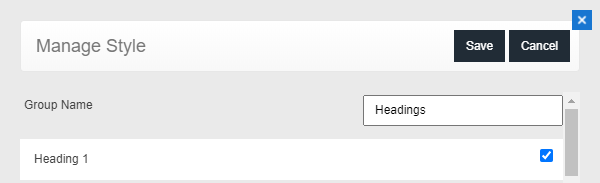
1. Open your MegaEdit product in the editor. Go to the Menu, and Press Style Options:
mceclip0.png


2. On the next screen, you will be taken to the style manager. First, let's create a new Heading. Press Add. 

mceclip1.png


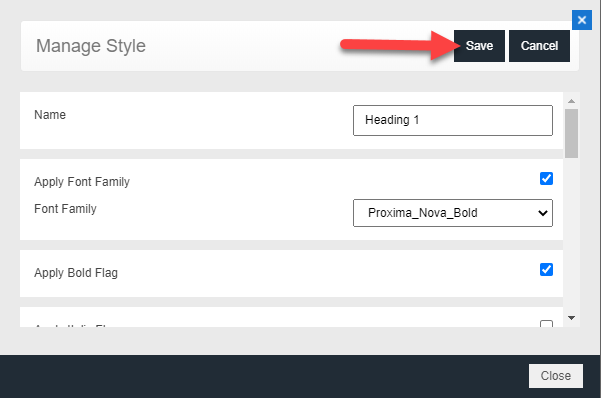
3. Here, you can name your style item, and apply different options to it. For the font selection, only fonts that you have configured against this product will be available. Here is a full list of options you can choose from:

  • Font Family
  • Bold
  • Italic
  • Underline
  • Strike
  • Font Color - you can either type in the Hex code OR select from the palette
  • Font Size
  • Alignment - left, right, or center
  • Opacity
  • Leading
  • Word Spacing
  • Character Spacing
  • Paragraph Spacing

Checking any of these items will save it against this specific style item. Once you have made your selections, press save. 
mceclip2.png

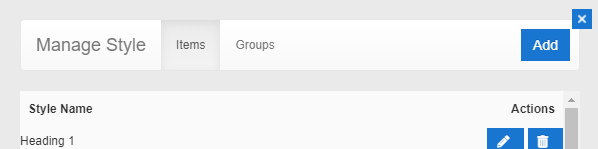
You will now see your style item saved in the style manager:
mceclip3.png


4. Now that you have a style item, you need to create a style group to assign it to. To create a style group, simply press Groups then Add.

mceclip6.png


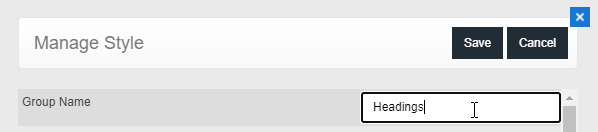
5. Name your style group, in this example it is named Headings. Press Save. 
mceclip7.png


6. Now you will see you have a Headings Group. To apply your style item to the style group, press the edit button. 
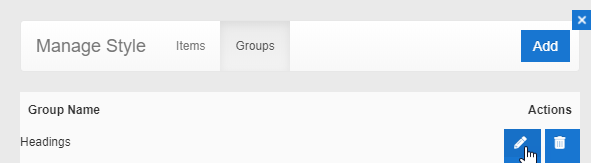
mceclip8.png


Then, select the style item you just created:

mceclip9.png


Press Save. 

At this point, please save as product default so your style is saved across this product.

mceclip14.png


7. To apply this to a text field, simply click the text field, and navigate to the final tab. You will want to find the setting Assign Style Group. Choose Headings.

mceclip10.png


8. In the text field, you will now see an option to choose a style in the main tab. This will allow your user to change the styling on the fly. Be sure to save your product as default after you are finished. Below is an example of this:

Note the default styling:

mceclip12.png

When the user chooses Heading 1, the entire field will change styles on the go.

mceclip13.png


There is no limit to the number of styles you want assigned to a group. Please keep in mind that only one Style Group can be assigned per Text Field. You can also assign a Style Item to multiple Style Groups. 


Assign Background Categories to a Layout


We have recently introduced the ability in MegaEdit to assign specific background categories to specific layouts. Previously, the only way you could limit a background was with page tags, now, you can manually assign a background category to a certain layout, and that background category will only appear for that layout. 

For example, you may have a layout that only fits with a very specific background category - such as a 2 Column Layout with a 2 Column Background Category. Previously users would be able to choose backgrounds found in other categories. Now, you can assign the 2 Column Background Category, to the 2 Column Layout, therefore restricting users to use only that specific background for that layout. 

In the steps below, we will show you two simple layouts, assigned to two different background categories. 


Setup

1. Open your MegaEdit product, in the editor, go to Show Menu >  Product Options. Under the Left Pane, enable Layout Restrictions. 

mceclip0.png


2. In this example, two layouts have already been setup. Please either apply your layout to the page, or, create a new layout. If you are unsure how to edit or add a layout, please visit this article. Currently, we have Layout 1 applied to the canvas. From the image below, you can see that there are two background categories enabled. 


mceclip5.png

We want to only show the first background category on this layout. 


3. Now, save your layout, be sure it is in the correct layout category. Please select the background category you want available for this specific layout. In this example, we chose 'Backgrounds' as this one has the solid colors. 

mceclip6.png

Press OK. Then either save if this is new, or overwrite the existing layout. 

4. To see the changes take effect, either reapply the layout to the canvas, or refresh the page. You can see now, that the Background Category that was assigned, is the only one available for this layout. 

mceclip7.png


5. Similarly, we want to limit the backgrounds for our other layout. Using the steps above, we are limiting Background 2 to Layout 2:

mceclip8.png


You will see, this layout does not have the same background category available as Layout 1:

mceclip9.png


Can I rename Fonts?


No, we advise against renaming fonts as this will cause errors wherever the font is in use. If you would like to rename a font, then we suggest you reupload it with the new name. 

Can I hide the left-hand-side menu in the MegaEdit Editor?


Yes this is configuration partly and customer role dependent too. If you set the background category being used to admin only then it will hide from the end user. That can be done directly on the product canvas being used and then setting the background category. If its imported from InVent then it should be set as admin only anyway.
 If you are an admin user you always see these left sided tabs as default.  A registered user will only see items there if it is enabled.

Why are my copy and paste, and cut keyboard shortcuts not working in MegaEdit?


There are two settings in MegaEdit Editor under 'Menu' > 'Product Options' > scroll to section 'Basic Features' that you'll need to ensure are unticked: 

Creating a MegaEdit product with Invent template


MegaEdit FAQs

Q: Can I rename Fonts? 

A: No, we advise against renaming fonts as this will cause errors wherever the font is in use. If you would like to rename a font, then we suggest you reupload it with the new name. 

Q: Can I hide the left-hand-side menu in the MegaEdit Editor? 

A: Yes this is configuration partly and customer role dependent too. If you set the background category being used to admin only then it will hide from the end user. That can be done directly on the product canvas being used and then setting the background category. If its imported from InVent then it should be set as admin only anyway.
 If you are an admin user you always see these left sided tabs as default.  A registered user will only see items there if it is enabled.

Q: Why are my copy and paste, and cut keyboard shortcuts not working in MegaEdit?

A: There are two settings in MegaEdit Editor under 'Menu' > 'Product Options' > scroll to section 'Basic Features' that you'll need to ensure are unticked: 

Q: Can I create a pop up message in the MegaEdit editor?

A: Yes. Using editable content blocks and assigning one to the MegaEdit product you want to display the message on. Navigate to Editable Content in Admin and under the custom tab section add a new content block. You could call it "MegaEdit instruction panel 1" for example. You can adjust the content as you require.  Then simply assign that to any product under the MegaEdit product section for instructions.


Q: Can I copy an Invent ME product? (A ME product created in Invent and uses a MEX file)

A:  We don't recommend you copy Invent ME products, we suggest you create the product from scratch rather.


Q: 

A: 

Print a copy of Downloaded Preview

"Restrict Printing for HighRes watermark" function allows users to print a copy of downloaded preview on demand without having any restriction applied on their account.

To remove the restriction, go to Configuration > Settings > Product and Editor Settings > Infigo Settings and find Restrict Printing for HighRes watermark and untick the check box.

mceclip0.png

To download a printable soft proof apply these settings and then go to :

Incomplete
🔎
Loading…
    Select a Problem Solver