This article serves to cover the use of discounts to both products and product groups, within Infigo. Discounts can be applied to products, product groups and to categories.
The same discount (25% will be used throughout this example) however, an almost unlimited amount of discounts can be applied to suit your needs. In the following examples, a discount code has been applied, in the instance of a discount code being inapplicable, the discounts will be applied automatically.
Step One
1) Navigate to Promotions > Discounts
2) On the Discounts menu, you will be able to add and delete discounts on your storefront. The below steps explain how to setup each of our discounts, as well as explain the different settings and requirements you may enable.
Step Two
|
- Entering a designation for the discount – this will reflect the discount value.
*The option of configuring the discount value to either be a percentage or amount deducted can be selected/configured from this information.
|
|
- Configuring the discount details will enable the utilization of the discount on products and other relating processes/properties.
|
Discount Types
|
- Selecting the appropriate discount type will determine how and where the particular discount will come into effect, regarding the actual products or payment/checkout process stages.
|
Assigned to order total
This type of discount is applied at the checkout summary and ultimately affects the end price. An example order is a quantity of 10 business cards costs £100.00. When the coupon code is applied, the 25% is taken off.
|
- Designating the 'Assigned to order total' discount type.
|
|
- Configuring the settings of the discount and assigning the aforementioned discount type, the result is of the discount affecting the end total of the product. This can be confirmed by the inclusion of the discount within the summary of all stages of the order and the overall total showing the change in value from that of the initial sub-total.
*Also shown is that the discount was applied via the established discount code (opting to initiate a discount without the code) eliminates this stage and the coupon/discount code field can be hidden via Configuration > Settings > Basket Settings (Cart Settings) and disabling the option to 'Show discount box'.
|
Assigned to product variants (SKUs)
This form of discount is applied to products that have registered variants. The SKU (stock-keeping unit) can act as a further form of reference regarding the product itself. You must also assign this discount directly to the product variant in Catalog > Products > Product Management > + button > Edit > Discount tab.
|
- Applying the discount to the Product Variant (SKU) shows the change in price within the front-end of the system, prior to adding the product to the basket. The above screen capture depicts the old and new price (following a discount of 25%) as well as the SKU of the product (Mag-000).
|
Assigned to categories
When you directly assign the discount into the category from Catalog > Categories > Manage Categories > Edit > Discounts tab, all products in the category will have the discount applied. In this example, the Business Card is placed in a Stationery category, therefore, all products in this category will have the 25% discount assigned to them.
Assigned to Delivery (Shipping for US)
The format of this discount will be in that it is visually recorded in the checkout process and thus will affect the final cost in which the customer will pay by potentially reducing the cost of delivery.
|
|
The above screen capture shows the discount of 25% applied to the various delivery methods that have been configured on the storefront.
|
|
|
The screen-capture above shows the original prices/rate assigned to each form of delivery.
|
Assigned to order sub-total
This type of discount is associated with the order subtotal and will appear as such during the checkout process. In the example below assigning a discount will customarily calculate 25% of the subtotal (in this scenario, from the original sub-total of £45.00).
|
- Depicted above, is the corresponding 25% discount of the original sub-total which was £100.00 deducted £25.00
- Something to bear in mind, is that the tax will be calculated from the ORIGINALsub total, and then added to the final total amount.
|
Assigned to product variants directly
This discount type concerns the variants of particular products. For example, business cards and journals may have multiple variants (colour, size) which are able to be grouped together and legible to be charged in one instance.
|
|
- Entering the product variant of the Business Card (85x85mm). Selecting 'Edit' will allow for the discount of 25% to be applied under the 'Discount' tab.
|
|
- The above screen capture depicts the product variant of the business card and the change in price, as seen on the front-end of the system.
|
Assigned to product groups directly
Products can be consequently assigned to groups that relate to their purpose or nature. In this following example, the Business Card will be placed within a Business Cards group.
The discount can be assigned to the group in Catalog > Products > Product Groups > Edit > Discounts tab.
|
|
| |
|
- This business card is assigned to the Business Cards group, which has a 25% discount. The new price is reflected on the product landing page.
|
Assigned to order sub-total including shipping
Assigning this discount type results in affecting both the order sub-total and the cost of delivery. Shown below, the shipping/delivery method First Class originally cost £10.00, in addition to the product cost of £100.00 (totalling £110.00 altogether).
You can see below, the sub-total and the shipping both get a 25% discount.
Something to bear in mind, is that the tax will be calculated from the ORIGINAL sub total, and then added to the final total amount.
Requirements
In addition to the discount types, the instances of when a discount can be further applied is controlled through specific requirements. You can set multiple requirements per discount.
The requirements may be affected by the discount type that is also in use at that time (for instance, the discount type of: 'Assigned to Delivery', Requirement: 'Customer had spent x.xx amount' will produce subtly different results - should the requirement remain the same, though the discount type be of: 'Assigned to Order Total').
Billing country is
This discount option will only apply when the user checking out selects one of the valid configured countries. You may set multiple countries to this requirement.
Customer had previously purchased all of the product variants
If a user had already purchased all of the product variants you assign, then the discount will apply to the next order.
Inserting the IDs of specific product variants will therefore apply the discount to only these products.
Simply insert the product variant ID's, which can be located on the Product details page or the product URL. Multiple ID's will be separated by a comma.
Customer has previously purchased one of these product variants
Similar to the above requirement, this discount will only be applicable should a client have purchased a specific product variant (again IDs will be entered into the 'restricted product variants' field).
Customer had spent x.xx amount
As implied in the name of this requirement, this discount will only be applied should a user's basket total a specific amount (for example in the screen capture above, the user's had spent £110.00 - significantly more than the requirement of £25 requirement and therefore the discount was applied). It is worth to note that the discount type in this instance was 'Assigned to Order Total'.
Customer has all of these product variants in the cart
As applied in the name of this requirement, this discount will be applied should the client have specific product requirements in their cart. This can be applied through entering the specific Product Variant IDs into the appropriate field and separated by a comma. If multiple ID's are present in the requirement, they must all be in the cart to obtain the discount.
Customer has multiple line items of the same quantity discount. Only valid for direct product variant discounts!
An example here would be the user wants to order 20 business cards. 10 Business Cards for a Supervisor, and 10 Business Cards for an Accountant. This would constitute multiple line items of the same product. The result would be both business cards are given a 25% discount.
This discount can only be used with Assigned to Product Variants Directly. Please see the steps above on how to Assign to Product Variants Directly.
Though it has been included in previous examples, in order for a customer to receive the discount automatically, no coupon code would be applied in this instance.
Go to the Requirements tab to begin the setup.
Minimum Number - this is the minimum qty needed to activate the discount
Maximum Number - this is the maximum qty that the discount will be applied
Requires the same quantity values - if enabled, the discount is only activated when all orderlines of the specific product variant are equal.
Numbers are quantities - if enabled, the total number of order lines items is used, otherwise the total quantity is used.
Customer has one of these product variants in the cart
Similar to the previous requirement stated above, this discount will only be applied should a specific ID be inserted into the Restricted Product Variants field.
Customer's basket value is x.xx
The discount, in regards to this requirement, will only be applied should the customer's basket value meet/equal a pre-set value.
Cart Value is maximum - when enabled, the discount will only apply if the Cart Value is lower than the set amount. For example, the amount is set to £200.00, but the cart is £100.00.
When disabled, the discount will apply if the cart value is greater than, or equal, the configured amount. Example: The Cart Reference Value is £25.00, and the cart total is £100.00, the discount will apply.
Discount is for Charity Donation or Not
This relatively new requirement will allow for the discounted percentage/amount to be donated to a charity of the storeowner's choice or alternatively be set so that the storeowner will receive the total funds possible from the order.
Must be assigned Customer Role
As this requirement suggests, the discount will be applied, should the user possess a specific customer role. In the below example, the customer role of 'registered' has been selected and will thus apply to all registered users.
Shipping Country is
From this requirement, the discount (in this instance) will only be applied should the shipping country be consequently defined and set thus meeting the variable assigned in the drop-down menu - as shown in the screen capture below. Multiple shipping countries can be assigned
Following the guidance and steps shown within this article, you will now be able to successfully create discounts on your storefront.
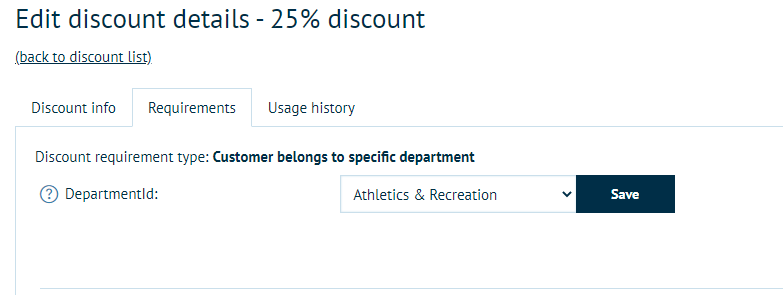
Customer Belongs to specific department
This discount will only apply to the user if they are within the department that you select.